
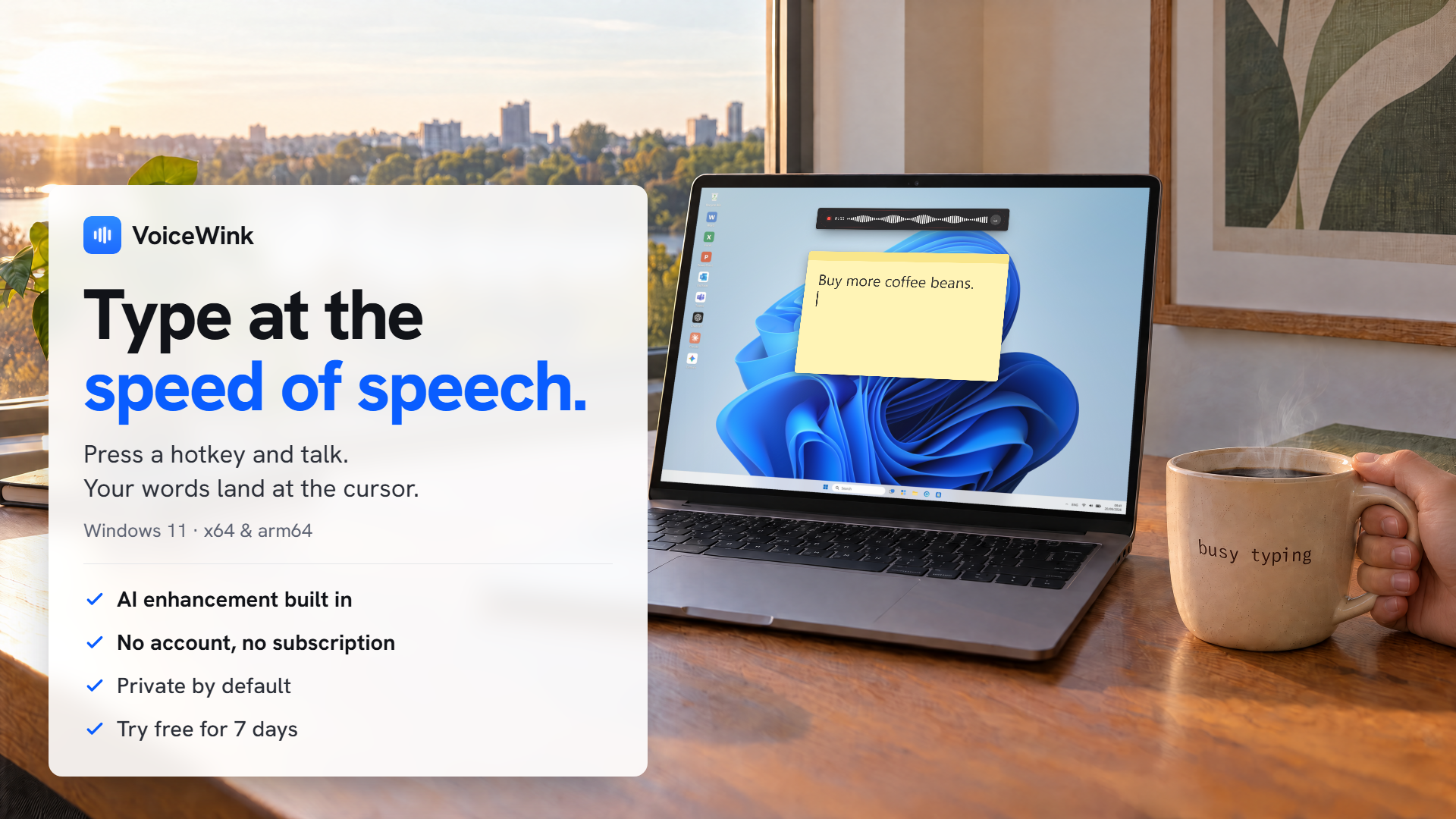
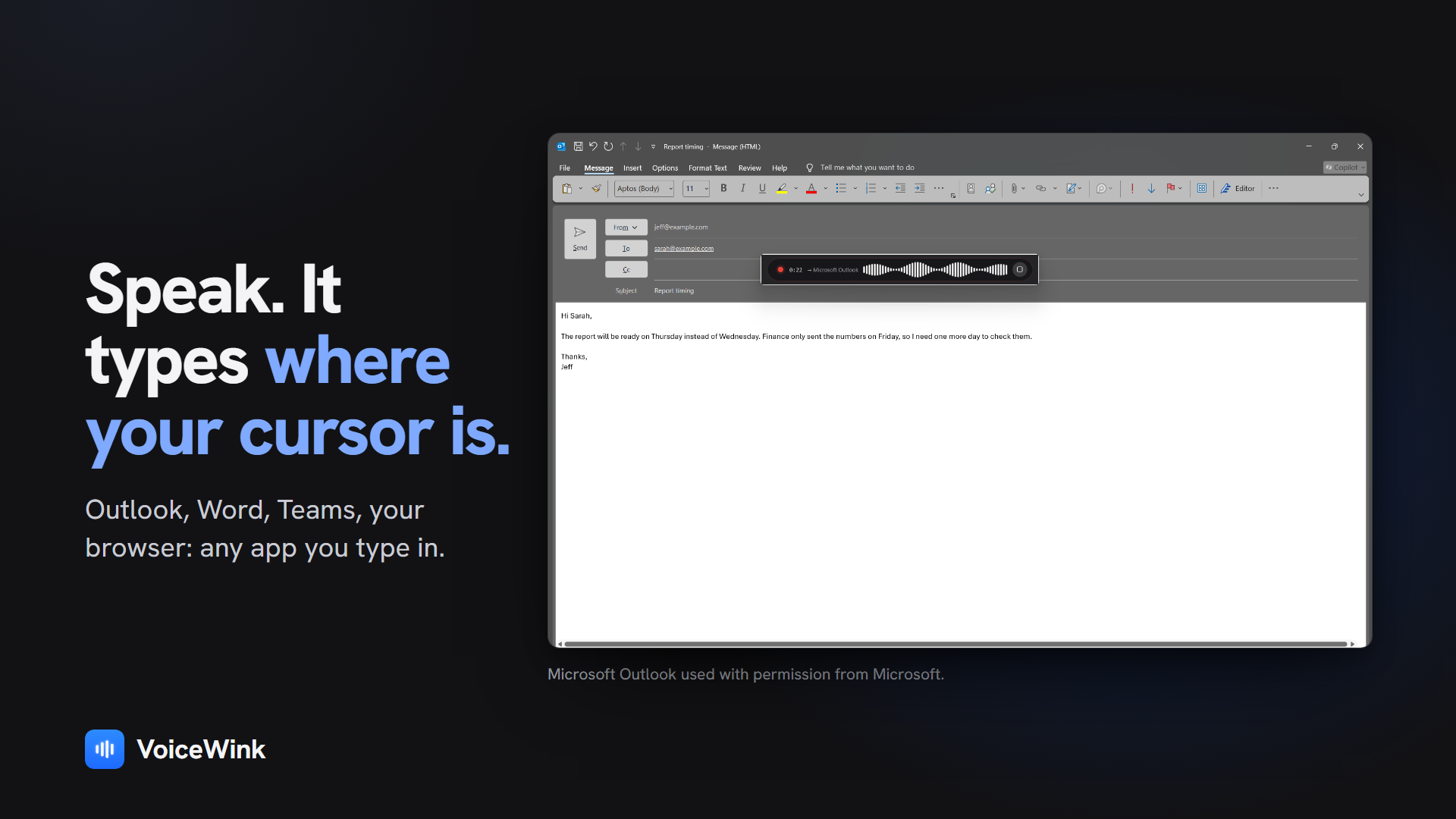
VoiceWink is a dictation and speech-to-text app for Windows 11. You hold a key, say what you want to write, and when you let go the text appears at your cursor, in whatever app you're in.
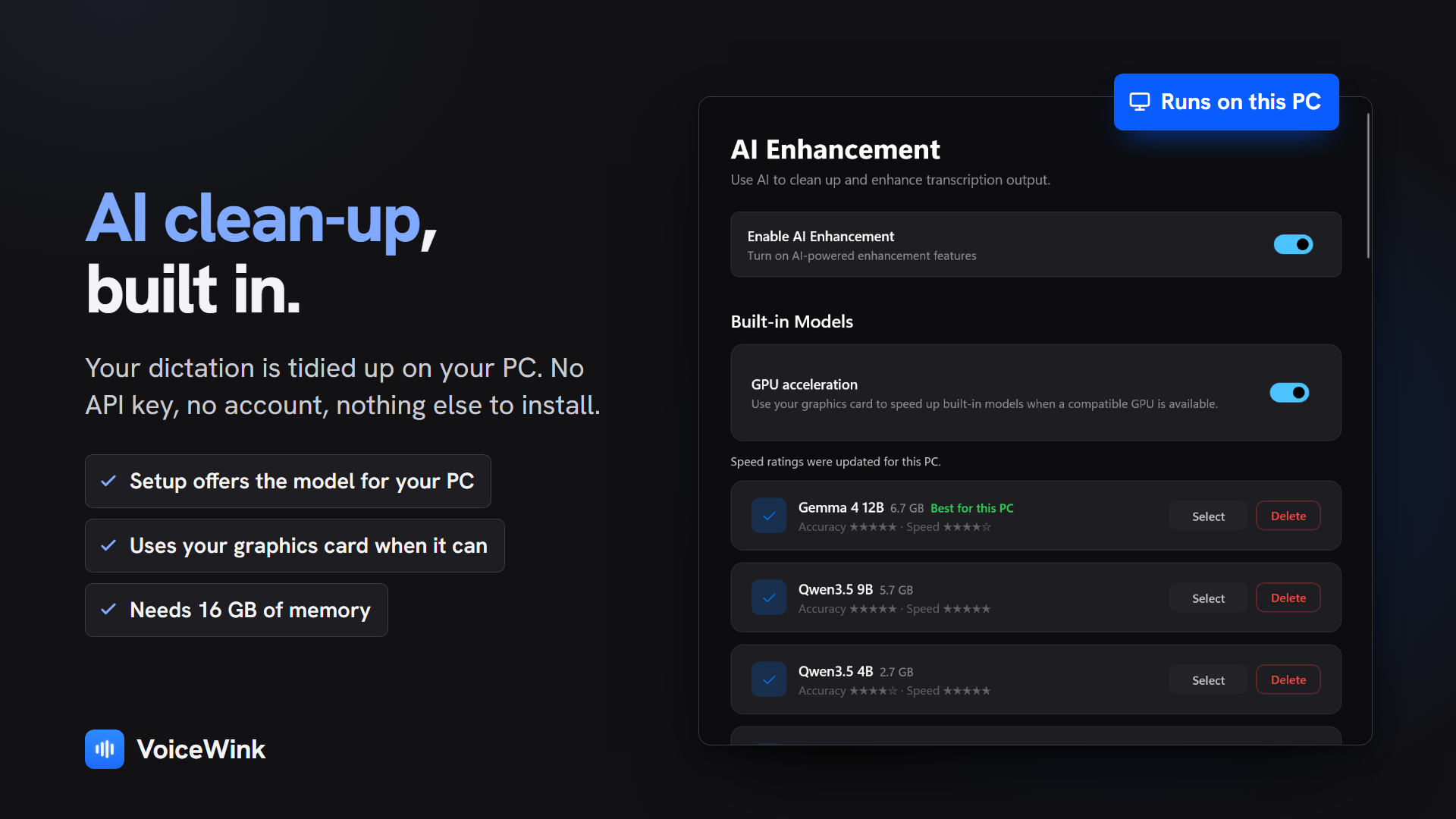
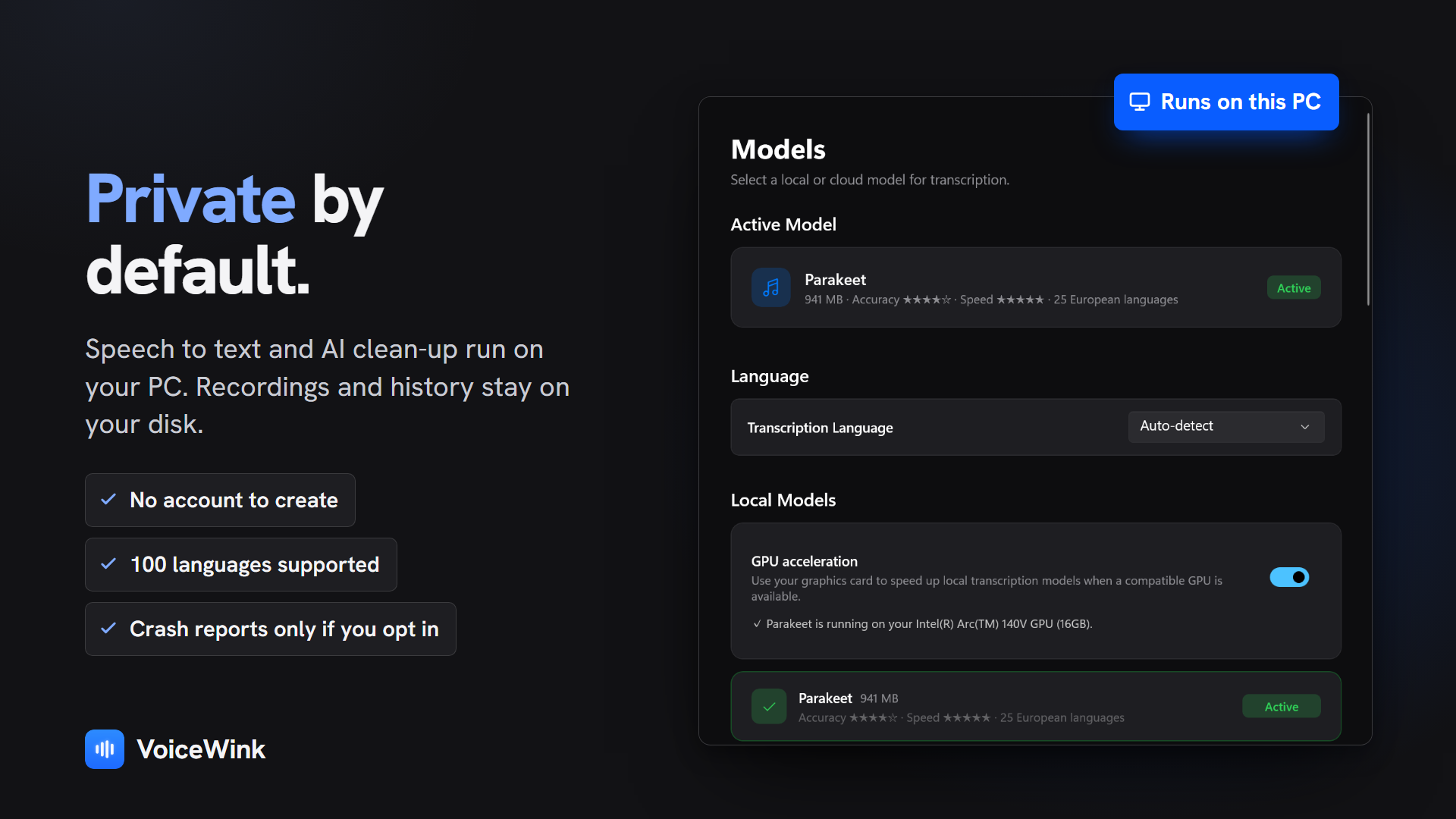
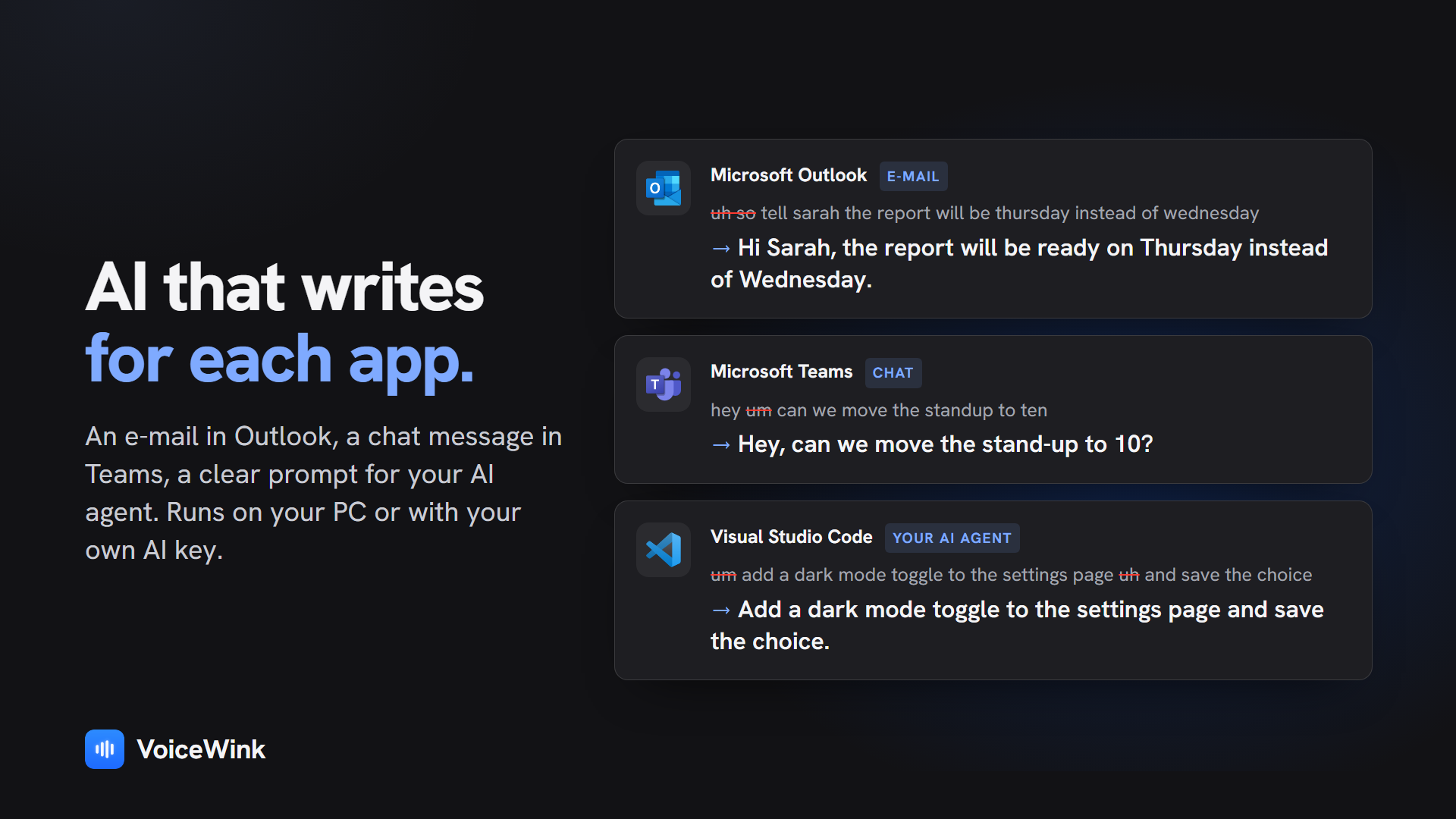
It can also rewrite what you said to suit that app, so it comes out as a proper email in Outlook or a clear instruction in Claude Code. The speech recognition and the rewriting both run on your own PC with built-in models, so you don't need an API key or an account, though the AI part does need 16 GB of memory. A cloud key or your own AI server works too if you prefer that.
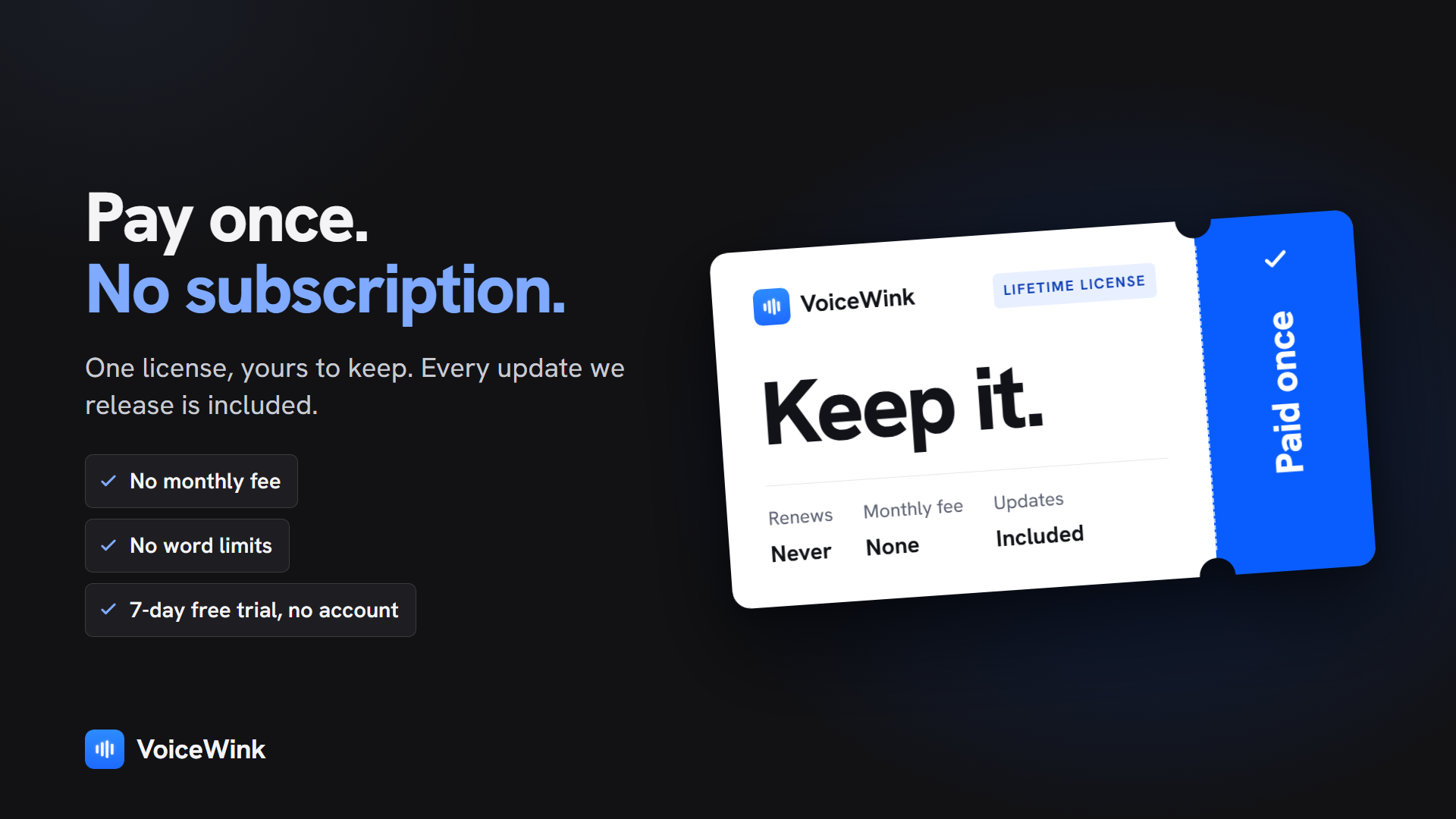
You pay once and there's no subscription. The trial is free and doesn't ask for your email, and the source is open under GPL v3.
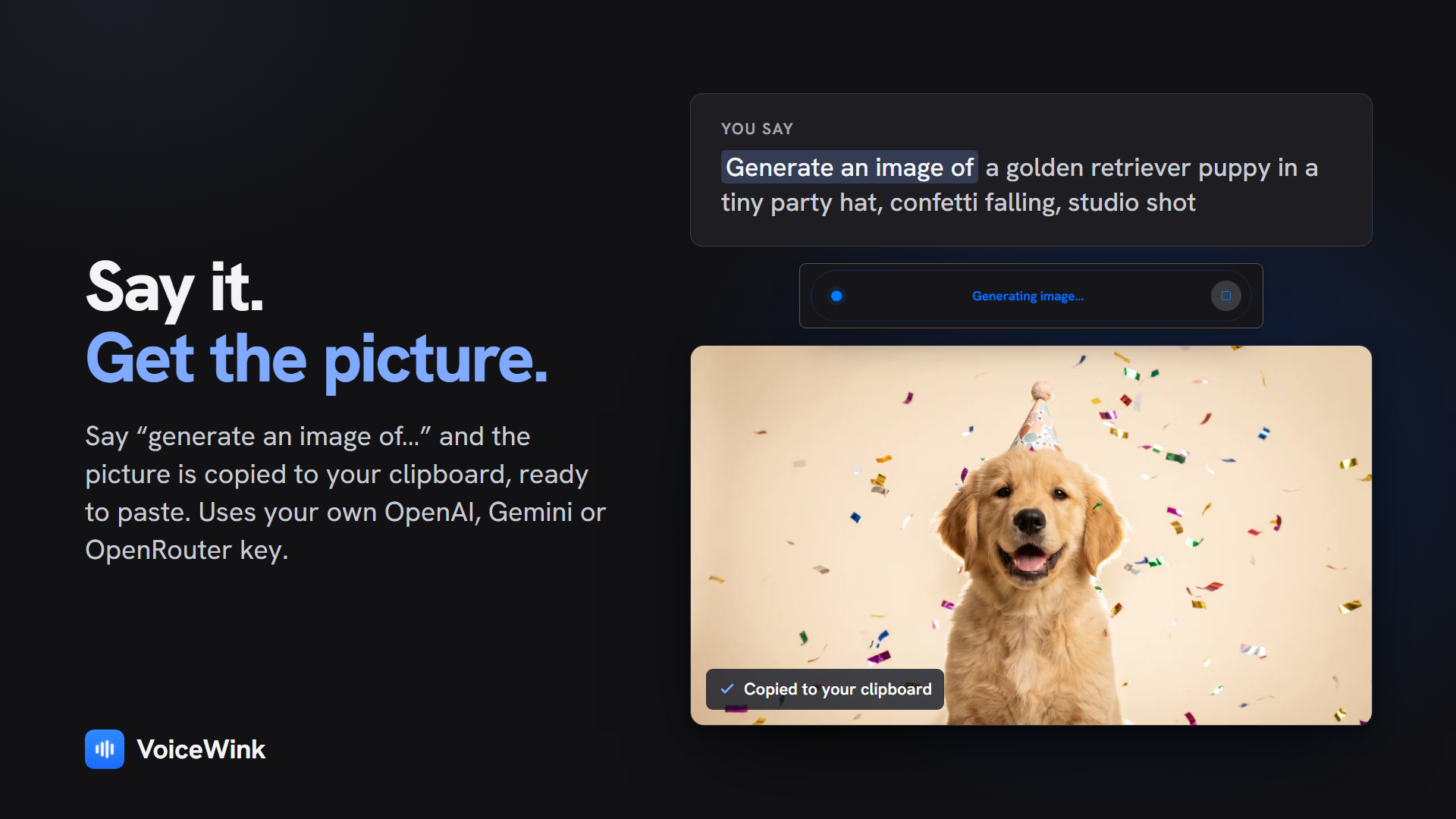
Features
- Hold a key, speak and let go, and the text appears at your cursor.
- VoiceWink can rewrite what you said to suit the app you're in, such as an email in Outlook or an instruction in Claude Code.
- Speech recognition and the AI rewrite use built-in models on your own PC, so you don't need an API key or an account.
Fazier Deal

Comments



Really like that both the speech recognition and the rewrite run locally with no account needed. I spend a lot of my day on Windows 11 support, so I'm curious how it handles admin windows. Windows normally blocks a regular app from typing into an elevated window like an admin PowerShell or regedit. Does VoiceWink need to run as admin too, or is there a way around that?

Local models plus a one-time licence is the combination that actually gets dictation onto a locked-down work laptop — no API key, no account, no per-seat cost. Text appearing at the cursor instead of in a separate window is what makes it usable mid-sentence in Outlook. Two things I'd want to know: the 16 GB figure is for the AI rewrite — does plain dictation still run on an 8 GB machine? And when the rewrite mangles a sentence, is there an undo, or does it paste what it heard?
The per-app rewrite is the clever part here — dictation that produces the same raw text everywhere is table stakes, but automatically matching tone for an Outlook email versus a chat message is a real workflow upgrade. Running both the recognition and the rewrite on-device also means no API key juggling and no round-trip latency. Curious how heavy the built-in models are: what does it do to RAM usage on a mid-range laptop?

The per-app rewrite is the detail that sells it — raw dictation rarely fits the app you're writing in, and having it come out as a proper Outlook email or a clean instruction saves a real editing pass. The one-time licence with no account is refreshing too. One question: with the local AI needing 16 GB of memory, does the app warn or fall back gracefully on a machine with less — for example by suggesting the cloud-key route instead?

Hi, I’m Dieter from Belgium. I built VoiceWink because I wanted to start using voice dictation to type faster without having to pay yet another subscription. What started as a hobby project has turned into a passion project. I want to make a high-quality open source tool that rivals the best available, and that anyone can have for a single lifetime licence. The speech recognition and the AI enhancements can both run locally on your PC, for privacy-conscious users and for those who just want it to work. Cloud is available as well, with your own API keys, for power users. Let me know what you think and what feature you’d like to see next! Dieter

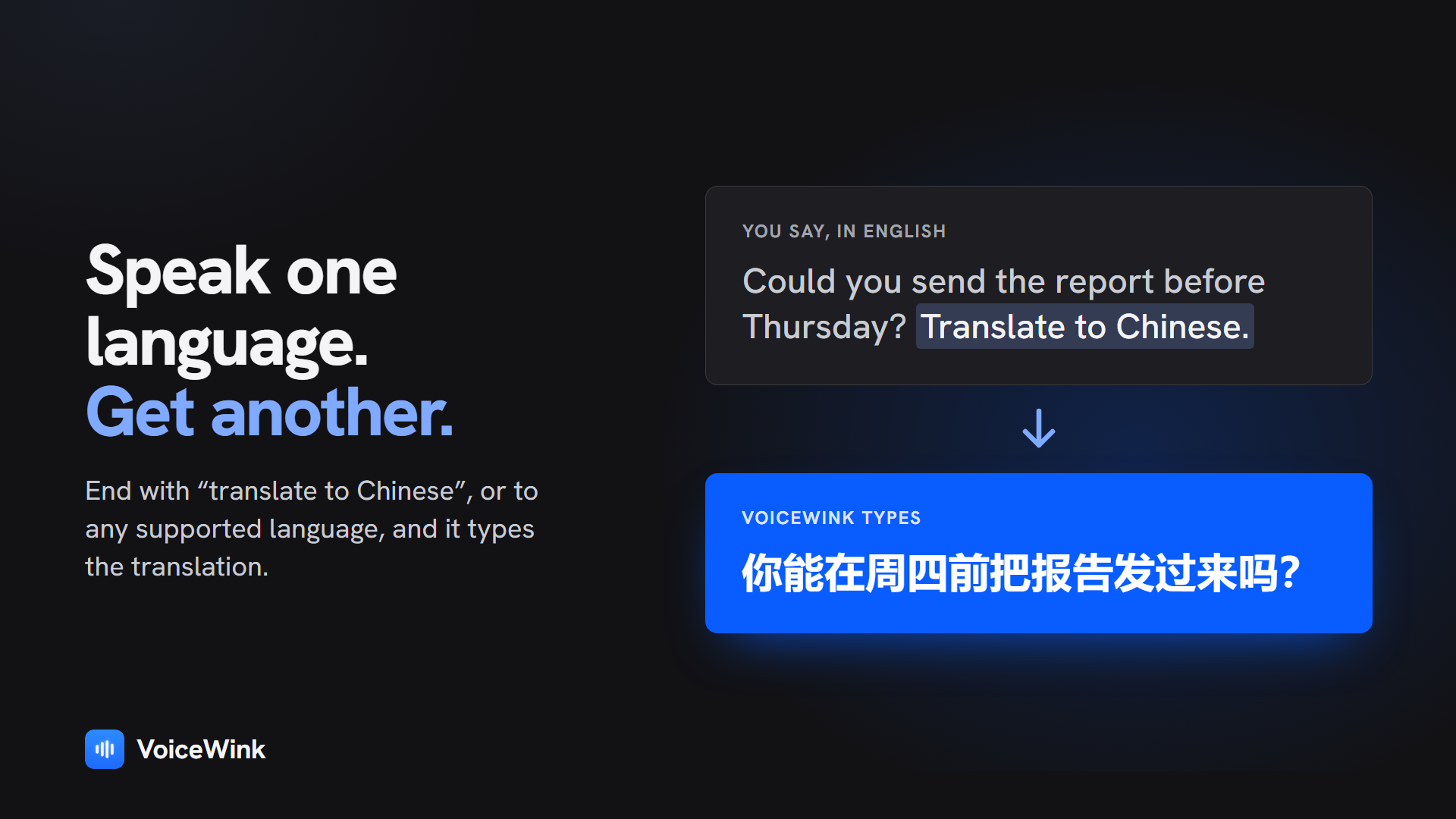
I've been using VoiceWink since September and it's been a real time saver. I mainly use it to communicate with AI. As a non-native English speaker, I sometimes make grammar mistakes or use unnecessary words. The AI enhancement feature helps turn my rough thoughts into clear, natural, and well-structured sentences. It also works great in Chinese, removing filler words and translating my spoken Chinese directly into English or Dutch. This is actually helpful when chatting with friends or colleagues on my laptop. It saves me so much typing time and makes communication much easier.
Premium Products







































Fazier Deal
Sponsors
Buy
Makers
Makers
Comments
Really like that both the speech recognition and the rewrite run locally with no account needed. I spend a lot of my day on Windows 11 support, so I'm curious how it handles admin windows. Windows normally blocks a regular app from typing into an elevated window like an admin PowerShell or regedit. Does VoiceWink need to run as admin too, or is there a way around that?
Local models plus a one-time licence is the combination that actually gets dictation onto a locked-down work laptop — no API key, no account, no per-seat cost. Text appearing at the cursor instead of in a separate window is what makes it usable mid-sentence in Outlook. Two things I'd want to know: the 16 GB figure is for the AI rewrite — does plain dictation still run on an 8 GB machine? And when the rewrite mangles a sentence, is there an undo, or does it paste what it heard?
The per-app rewrite is the clever part here — dictation that produces the same raw text everywhere is table stakes, but automatically matching tone for an Outlook email versus a chat message is a real workflow upgrade. Running both the recognition and the rewrite on-device also means no API key juggling and no round-trip latency. Curious how heavy the built-in models are: what does it do to RAM usage on a mid-range laptop?
The per-app rewrite is the detail that sells it — raw dictation rarely fits the app you're writing in, and having it come out as a proper Outlook email or a clean instruction saves a real editing pass. The one-time licence with no account is refreshing too. One question: with the local AI needing 16 GB of memory, does the app warn or fall back gracefully on a machine with less — for example by suggesting the cloud-key route instead?
Hi, I’m Dieter from Belgium. I built VoiceWink because I wanted to start using voice dictation to type faster without having to pay yet another subscription. What started as a hobby project has turned into a passion project. I want to make a high-quality open source tool that rivals the best available, and that anyone can have for a single lifetime licence. The speech recognition and the AI enhancements can both run locally on your PC, for privacy-conscious users and for those who just want it to work. Cloud is available as well, with your own API keys, for power users. Let me know what you think and what feature you’d like to see next! Dieter
I've been using VoiceWink since September and it's been a real time saver. I mainly use it to communicate with AI. As a non-native English speaker, I sometimes make grammar mistakes or use unnecessary words. The AI enhancement feature helps turn my rough thoughts into clear, natural, and well-structured sentences. It also works great in Chinese, removing filler words and translating my spoken Chinese directly into English or Dutch. This is actually helpful when chatting with friends or colleagues on my laptop. It saves me so much typing time and makes communication much easier.
Premium Products
New to Fazier?

Find your next favorite product or submit your own. Made by @FalakDigital.
Copyright ©2026. All Rights Reserved