ScreenFit
Readable screen shares in Zoom, Teams, Meet and Webex
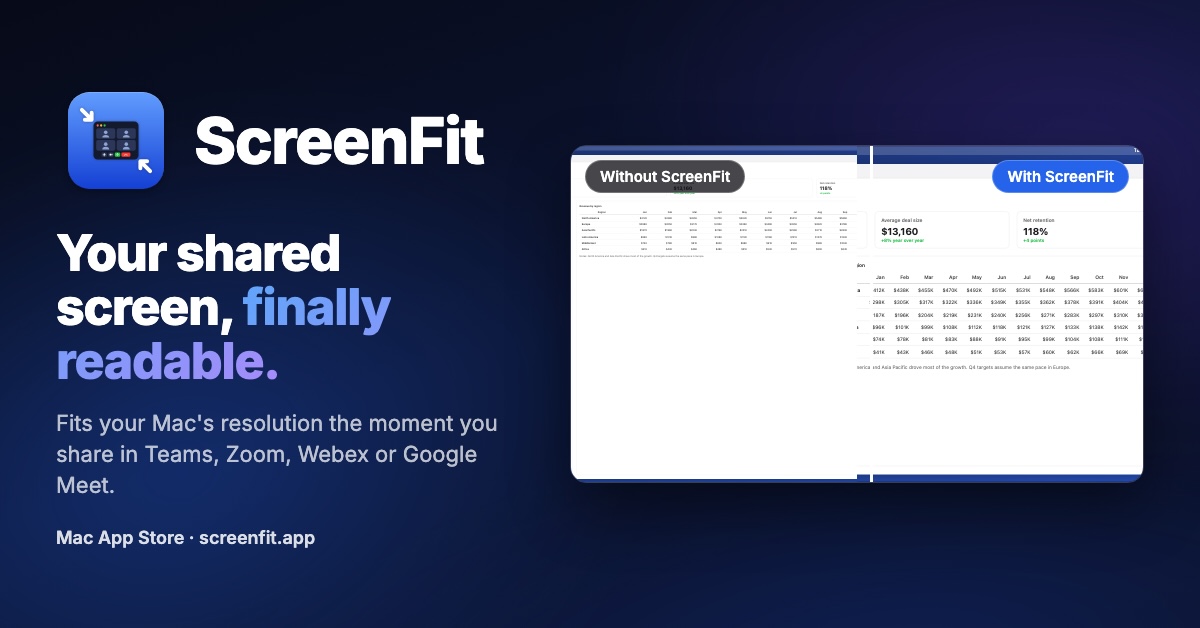
Ever shared your screen and heard "can you zoom in? I can't read that"? Meeting apps shrink your whole screen to fit each viewer's window, so on a sharp MacBook or a 4K monitor your text turns into a few tiny pixels on everyone else's screen.
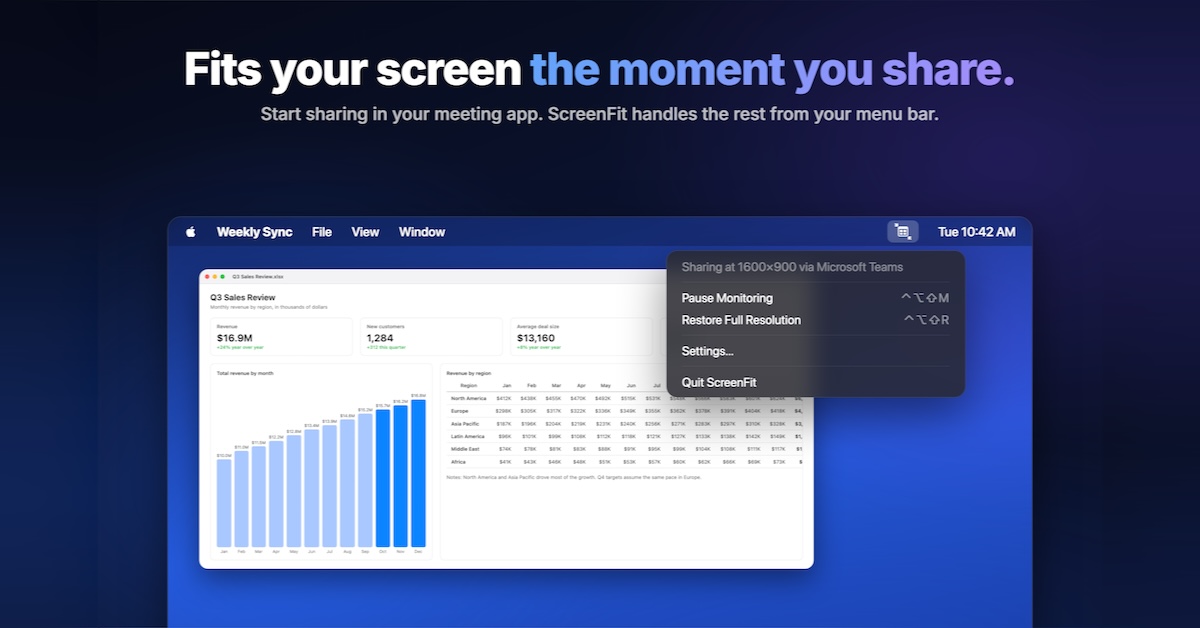
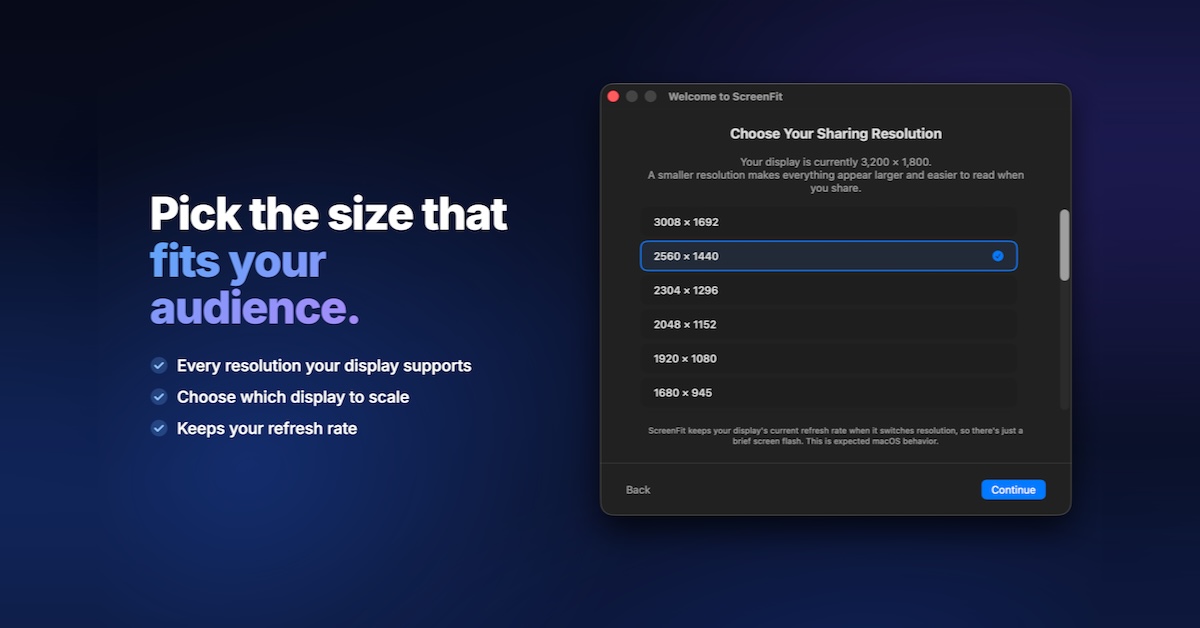
ScreenFit fixes that automatically. Start sharing in Zoom, Microsoft Teams, Cisco Webex or Google Meet and your Mac switches to the resolution you picked, so slides, code and spreadsheets are readable for everyone. Stop sharing and your full resolution comes straight back.
$4.99 once on the Mac App Store. No subscription, no account. Requires macOS 14 Sonoma or later.
Features
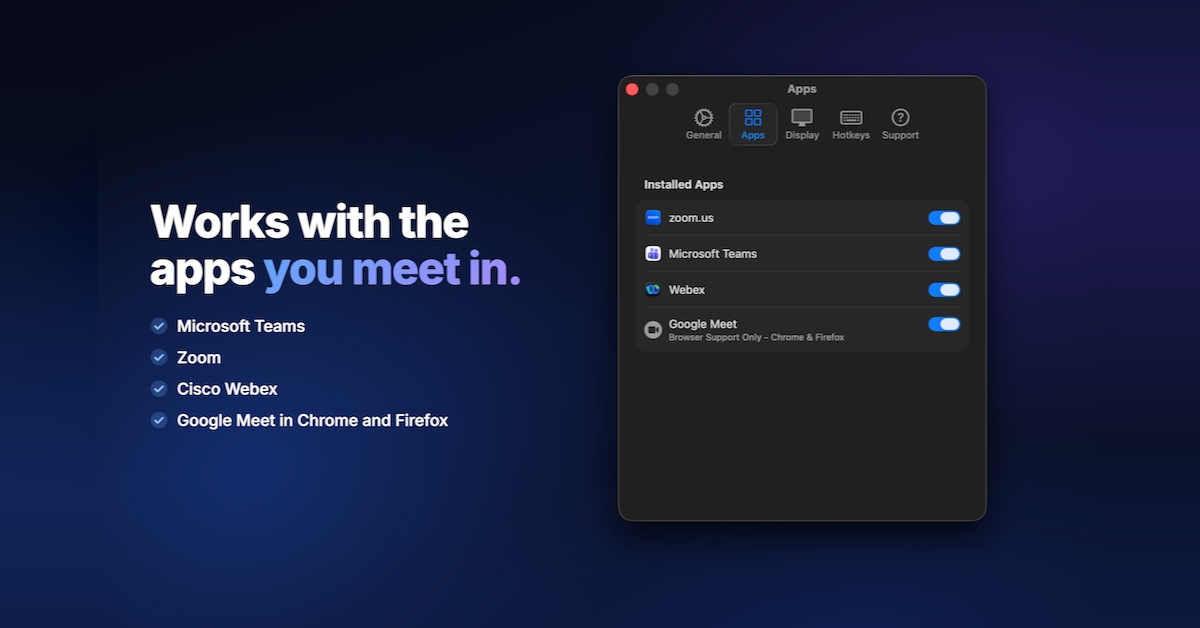
Detects screen sharing in Zoom, Teams, Webex and Google Meet (in Chrome or Firefox)
Switches to any resolution your display supports, then restores it when you stop sharing
Choose which display to scale if you use more than one monitor
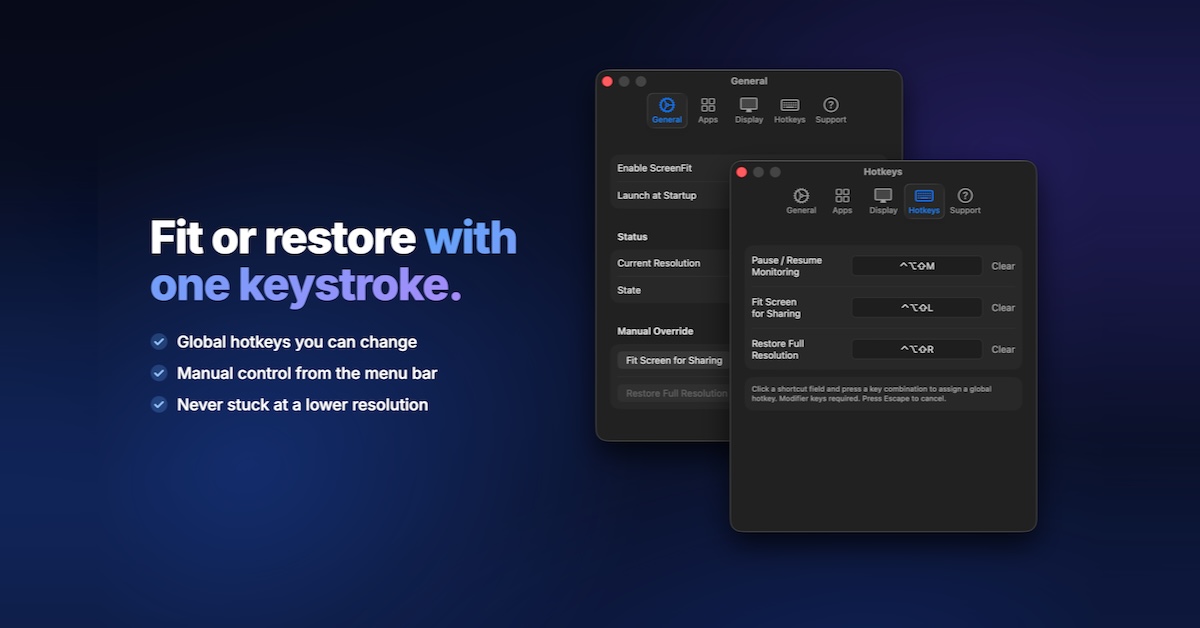
Fit or restore by hand from the menu bar or with global hotkeys you can change
Lives in the menu bar and can open at login
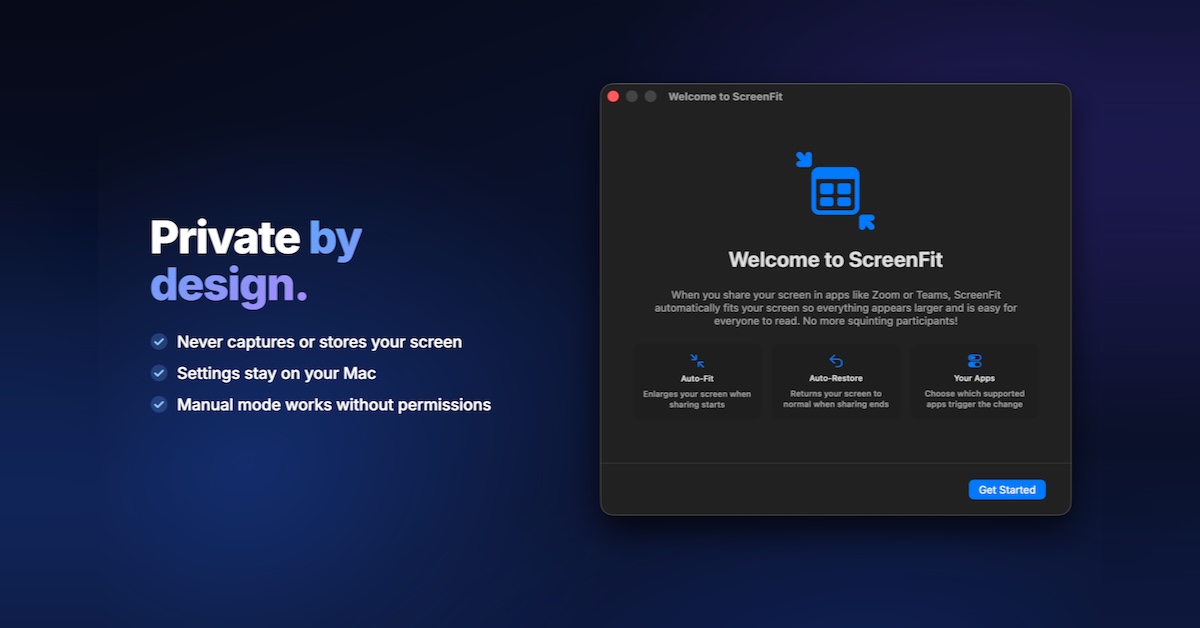
Never captures, sends or stores what's on your screen; settings stay on your Mac
Manual Mode works without Screen Recording permission
Use Cases
Teachers and professors lecturing on Zoom, so students can read every slide
Developers walking teammates through code in a review or pairing session
Presenting dashboards, spreadsheets and reports from a 4K or 5K monitor
Sales demos and customer calls where the product needs to be readable
Anyone on a high-resolution MacBook tired of hearing "can you zoom in?"

Comments


Hey Fazier! I'm Joe, and I built ScreenFit. I work on a big, sharp display, and every time I shared my screen in a meeting someone asked "can you zoom in? I can't read that." Meeting apps shrink your whole screen to fit each viewer's window, so on a high-resolution Mac your text turns into a few tiny pixels for everyone else. The fix is simple: lower your resolution while you share. But nobody remembers to do it, and switching back afterward is just as annoying. So ScreenFit does both for you. Start sharing in Zoom, Teams, Webex or Google Meet and your screen switches to the size you picked. Stop sharing and your full resolution comes straight back. A few things I cared about: • Privacy: it never captures or stores anything on your screen, and Manual Mode works without any permissions. • No subscription: $4.99 once on the Mac App Store. • It stays in your menu bar and out of your way. A recent update came from a bug I could only reproduce at my day job: Teams' sharing toolbar changed its controls mid-call, which made it look like the share had ended. ScreenFit now stays locked to the share, so that can't happen. I'd love your feedback, especially if you use a meeting app or setup I don't support yet!
Premium Products














































Sponsors
Buy

Makers
Makers
Comments
Hey Fazier! I'm Joe, and I built ScreenFit. I work on a big, sharp display, and every time I shared my screen in a meeting someone asked "can you zoom in? I can't read that." Meeting apps shrink your whole screen to fit each viewer's window, so on a high-resolution Mac your text turns into a few tiny pixels for everyone else. The fix is simple: lower your resolution while you share. But nobody remembers to do it, and switching back afterward is just as annoying. So ScreenFit does both for you. Start sharing in Zoom, Teams, Webex or Google Meet and your screen switches to the size you picked. Stop sharing and your full resolution comes straight back. A few things I cared about: • Privacy: it never captures or stores anything on your screen, and Manual Mode works without any permissions. • No subscription: $4.99 once on the Mac App Store. • It stays in your menu bar and out of your way. A recent update came from a bug I could only reproduce at my day job: Teams' sharing toolbar changed its controls mid-call, which made it look like the share had ended. ScreenFit now stays locked to the share, so that can't happen. I'd love your feedback, especially if you use a meeting app or setup I don't support yet!
Premium Products
New to Fazier?

Find your next favorite product or submit your own. Made by @FalakDigital.
Copyright ©2026. All Rights Reserved