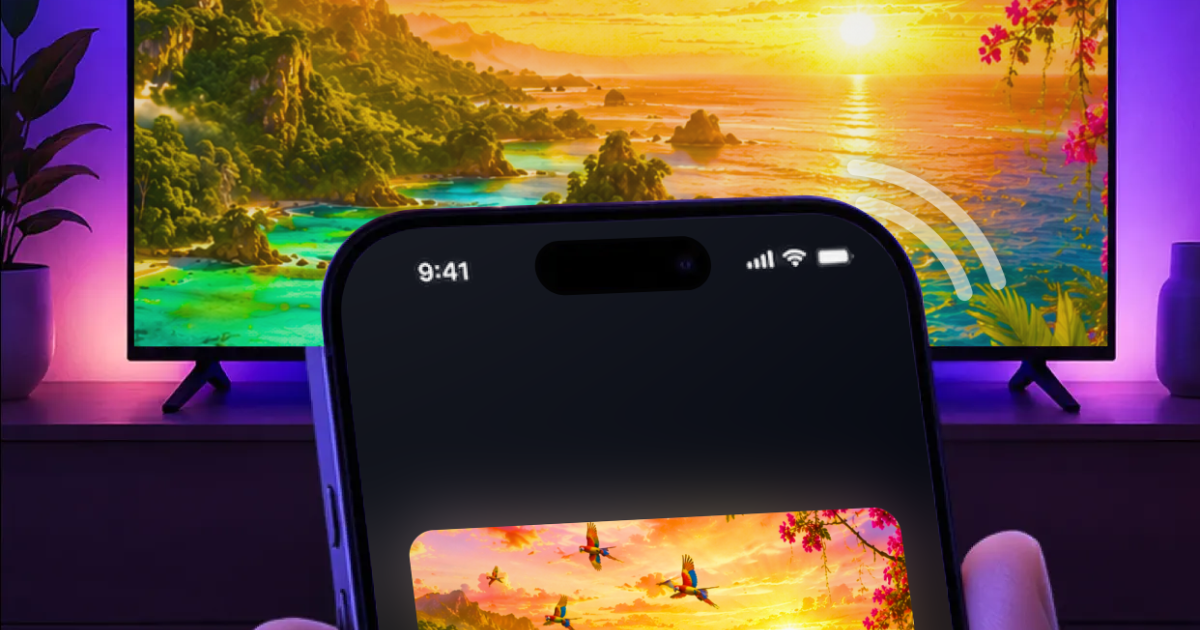
Mirror your iPhone to any TV. Screen Mirroring · Smart TV puts your whole screen, photos, videos and more on the big screen over Wi-Fi, without cables.
Share holiday photos, watch personal videos, browse websites, present slides and documents, or bring apps, games and video calls to a larger display. You can also cast online videos from the built-in browser and play your own IPTV streams.
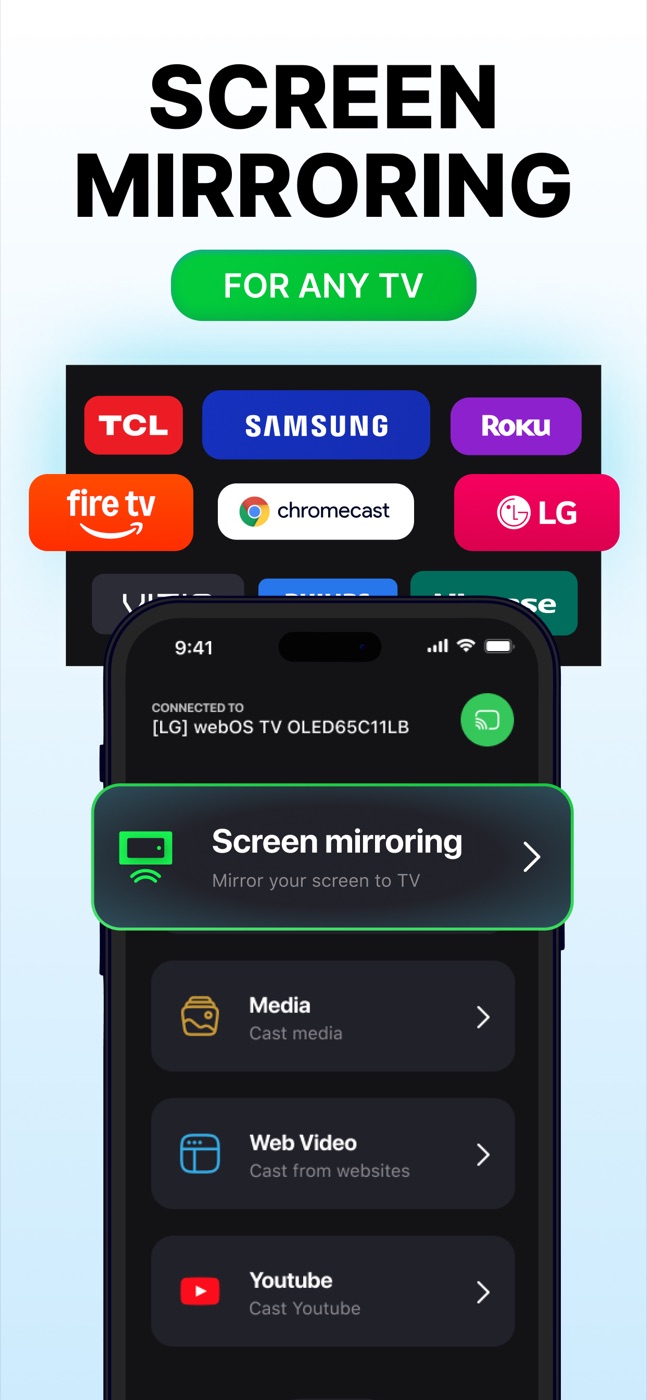
Works with Samsung, LG, Sony, TCL, Hisense, Vizio, Philips, Sharp, Insignia and Toshiba Smart TVs, plus Roku, Fire TV and Chromecast receivers.
Connect your iPhone and TV to the same Wi-Fi network, open the app and select your TV. Available for iPhone with iOS 15 or later. Free to download, with premium features available through in-app purchases.
Features
• Mirror your iPhone to any TV over Wi-Fi, without cables
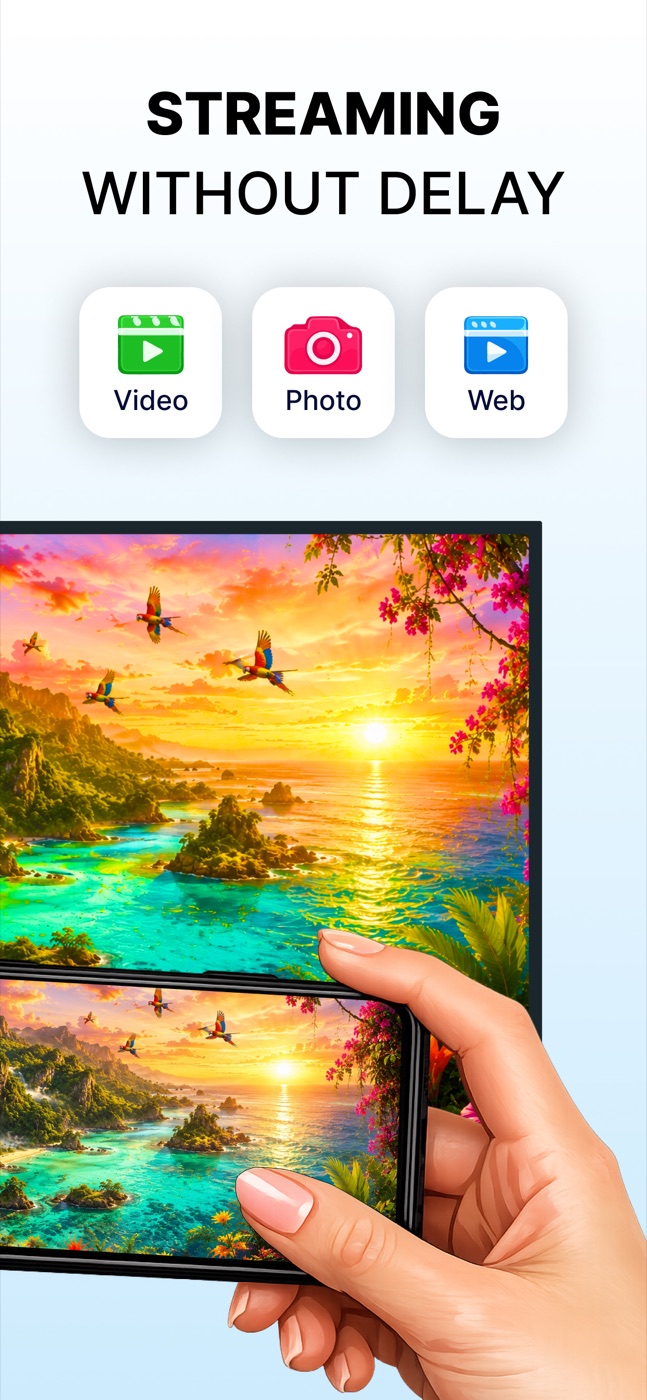
• Cast photos and videos from your gallery
• Cast online videos using the built-in web browser
• Show Instagram, TikTok, YouTube and other apps on a larger screen
• Share presentations, PDFs, documents and browser pages
• Bring mobile games and video calls to the TV
• Play your own IPTV streams in the built-in player
• Samsung, LG, Sony, TCL, Hisense, Vizio, Philips, Sharp, Insignia and Toshiba Smart TVs
• Roku, Fire TV and Chromecast streaming devices
Use Cases
• Show holiday photos and family videos without passing a phone around
• Present Keynote or PowerPoint slides, PDFs and documents to a group
• Follow recipes, tutorials and workout videos on a larger display
• Browse websites and share Instagram, TikTok or YouTube content
• Put a video call on the TV so the room can see it
• Enjoy mobile games on a larger screen
• Play personal media or your own IPTV streams
• Use the same iPhone app with different TV brands at home

Comments


Hi, I’m Vlad from the Screen Mirroring · Smart TV team. One surprisingly common source of frustration: two TVs can carry the same brand name and still use different receiving platforms. And showing one photo is a different task from sharing every tap on your phone. We focus on making those everyday moments simpler: mirror your iPhone, cast selected photos and videos, or put a presentation on the big screen from one app. Samsung, LG, Roku, Fire TV, Chromecast and the other TV brands on our site are all part of that experience. A quick setup tip: connect the iPhone and TV to the same Wi-Fi network, allow Local Network access when prompted, and choose whether you want to share your whole screen or just a photo or video. Which TV do you use, and what do you most often want to put on the big screen? I’d love to hear what works well and where the experience could be better. Setup guide: https://mirroriphonetotv.com/mirror-iphone-to-tv
Premium Products













































Sponsors
Buy

Makers
Makers
Comments
Hi, I’m Vlad from the Screen Mirroring · Smart TV team. One surprisingly common source of frustration: two TVs can carry the same brand name and still use different receiving platforms. And showing one photo is a different task from sharing every tap on your phone. We focus on making those everyday moments simpler: mirror your iPhone, cast selected photos and videos, or put a presentation on the big screen from one app. Samsung, LG, Roku, Fire TV, Chromecast and the other TV brands on our site are all part of that experience. A quick setup tip: connect the iPhone and TV to the same Wi-Fi network, allow Local Network access when prompted, and choose whether you want to share your whole screen or just a photo or video. Which TV do you use, and what do you most often want to put on the big screen? I’d love to hear what works well and where the experience could be better. Setup guide: https://mirroriphonetotv.com/mirror-iphone-to-tv
Premium Products
New to Fazier?

Find your next favorite product or submit your own. Made by @FalakDigital.
Copyright ©2026. All Rights Reserved