OffCode Automation tool
Windows desktop automation with OCR, UI Automation
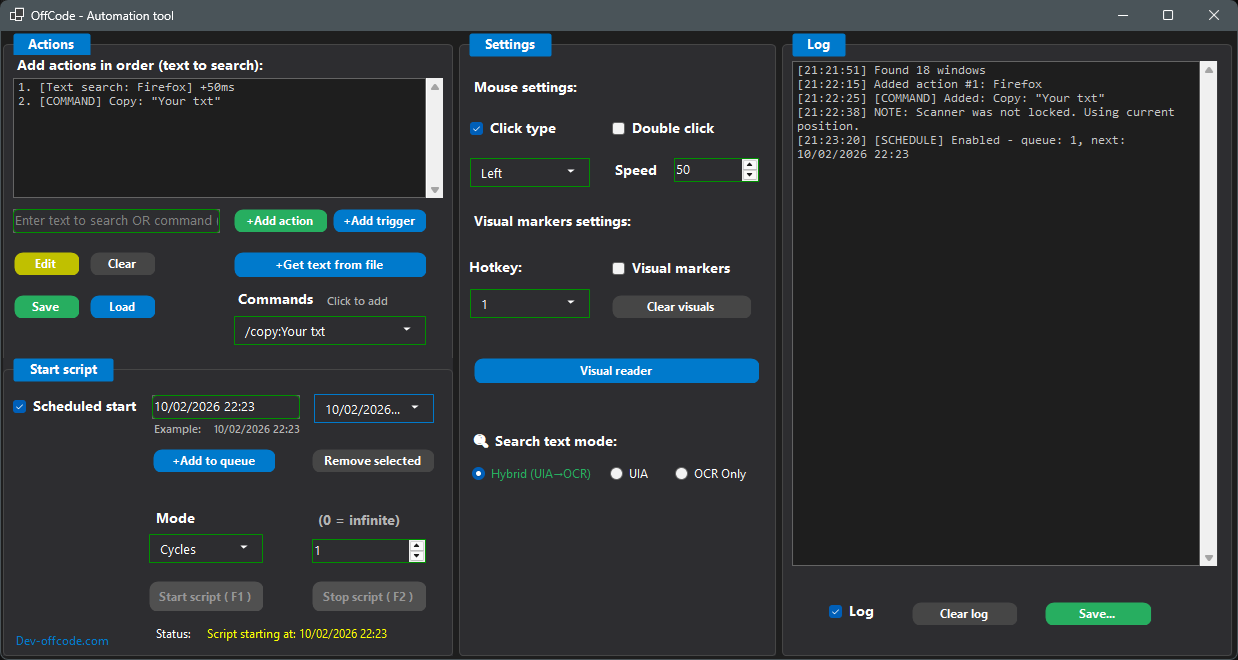
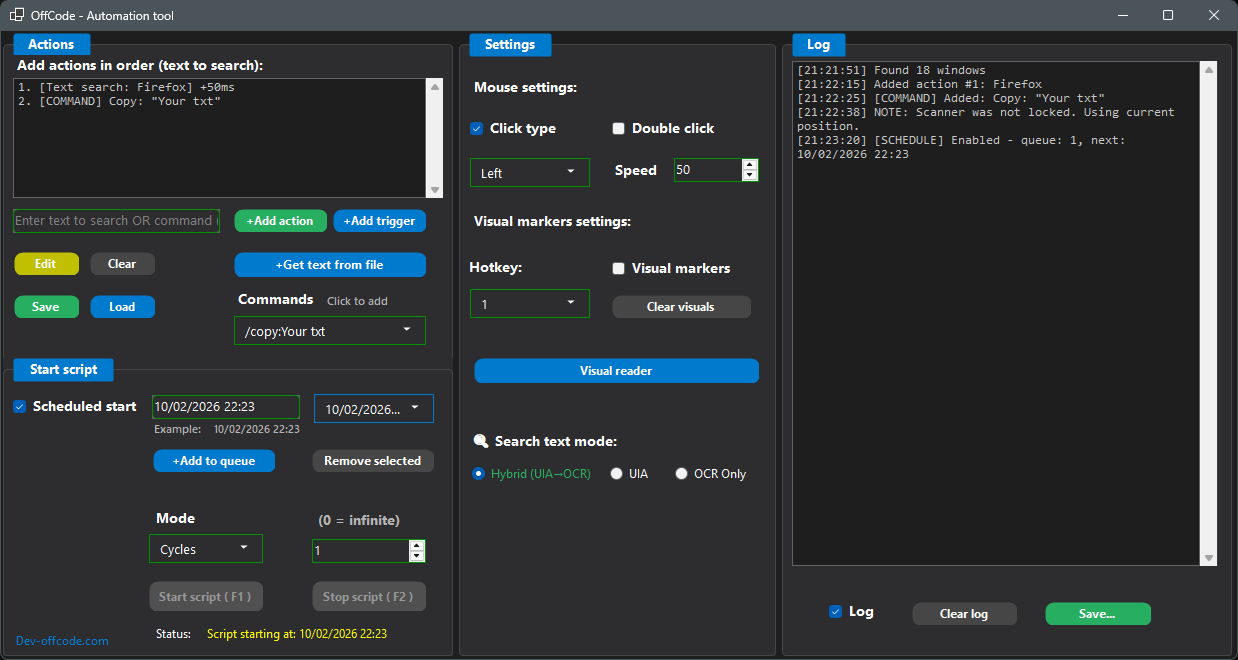
OffCode Automation Tool — a powerful Windows desktop automation application that can automate virtually anything you do on your computer. Think of it as a "robot" that can see your screen, find text or buttons, and perform actions like clicking, typing, and navigating – just like a human would.
The application combines three key technologies: OCR (Optical Character Recognition) reads text directly from your screen, UI Automation finds buttons and controls using Windows' built-in accessibility features, and mouse/keyboard simulation performs actions automatically. This powerful combination allows you to automate tasks that would otherwise require manual intervention.
Features
Text Detection
Find text on screen using OCR
- OCR reads any visible text
- UI Automation for buttons/controls
- Hybrid mode combines both
- Works with any application
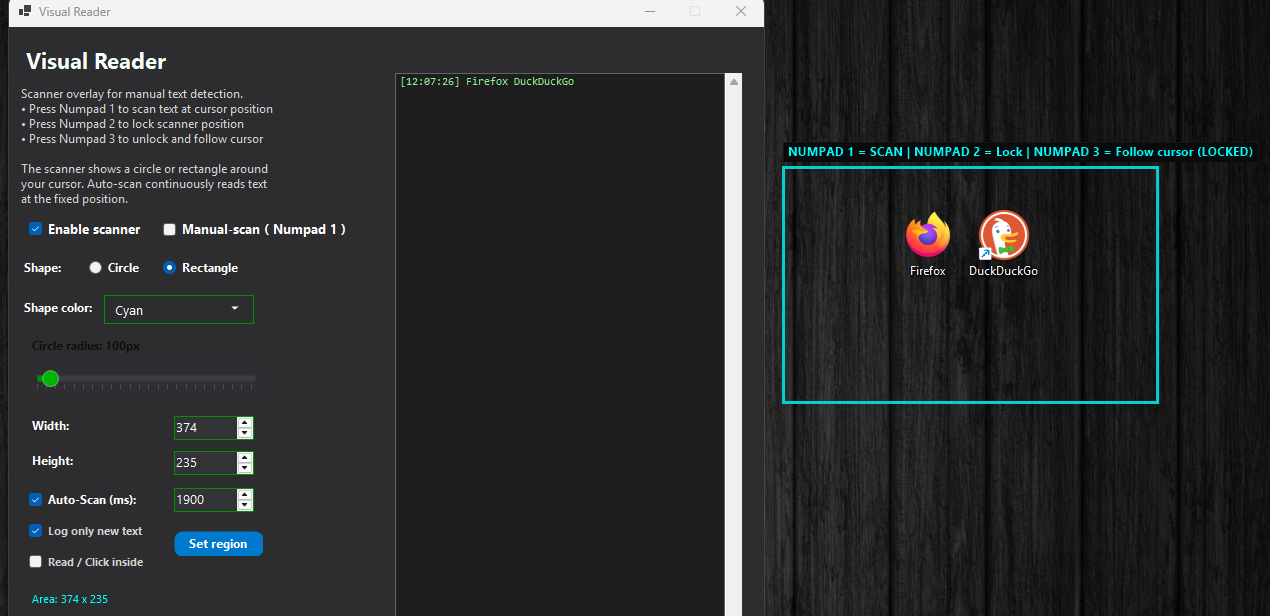
Visual Reader
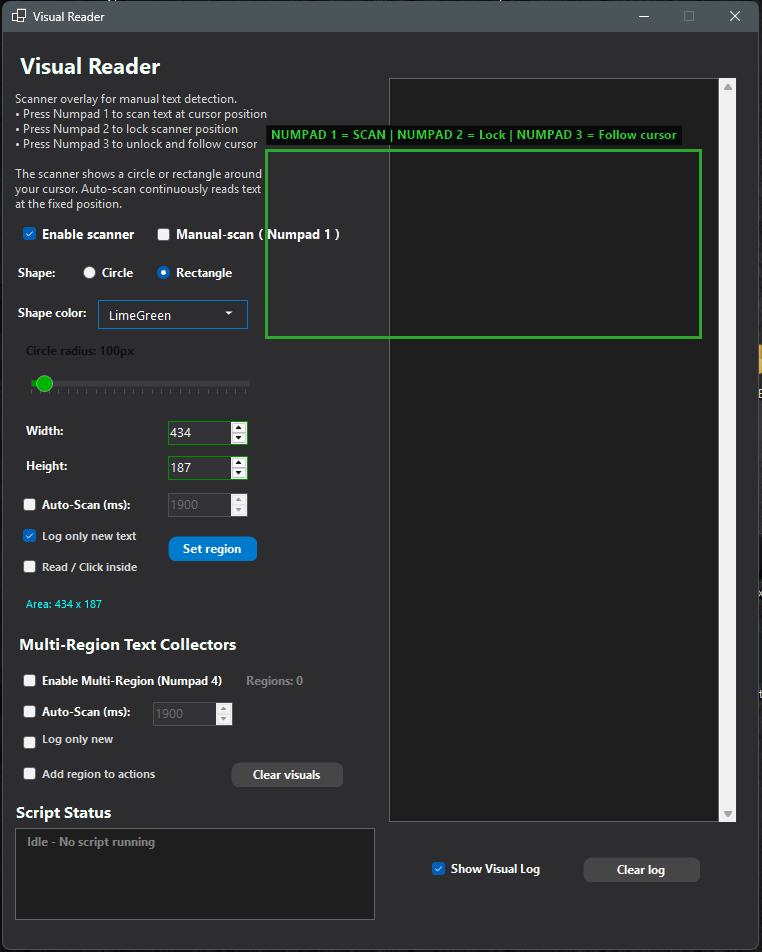
A real-time scanner overlay that follows your cursor or stays locked in position. Choose between circle or rectangle scanning area. Monitor specific screen regions continuously and collect text as it appears. Perfect for monitoring dynamic content, game timers, chat messages, or any changing text on screen.
Visual Markers
Place numbered green markers directly on your screen to mark important click locations. Markers display coordinates and labels, making it easy to return to exact positions. Use markers in your automation scripts for reliable clicking at fixed positions.
Scanner Triggers
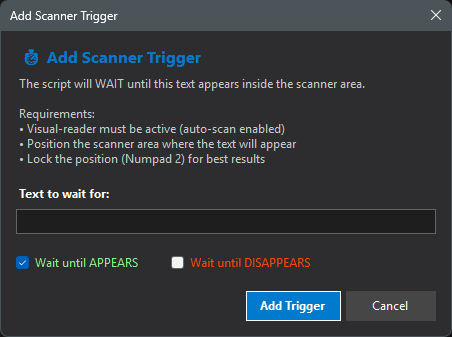
Create advanced automation triggers using the Visual Reader. Use `[WAIT FOR TEXT] "message"` to pause your script until specific text appears in the scanner area. Use `[WAIT GONE] "message"` to wait until text disappears. This enables conditional automation based on screen content changes.
Mouse & Keyboard
Automated interactions
- Left/Right/Middle click
- Double click support
- Type text automatically
- Hotkey combinations
Action System
Build automation sequences
- Visual action builder
- Loop support (0=infinite)
- Save/Load/Edit scripts as JSON
Text list for automation
Use a list of lines (e.g. search terms, messages, usernames) and feed one line per script step into the clipboard.
- Open the text-list window via "+Get text from file" in the main form
- Load lines from a .txt or .md file, or add lines manually
- Optional: use random order instead of first-to-last
- Add the "Get text from list" action to your script from that window — it inserts a step that runs during automation
- When the script reaches that step, the next unused line is copied to the clipboard and marked as used (so it won’t be picked again)
- Idea: each loop iteration can use different text — e.g. paste into a search box, type into a field, or fill a form with the next line from your list
Supported Commands
Available script commands (typed or chosen from the dropdown)
- /copy:Your txt
- /paste
- /wait:500
- /type:Your txt
- /hotkey:ctrl+c
- /key:Enter
- /move:100,200
- /click:500,300
- /scroll:up,3
- /scroll:down,3
- /startprocess:notepad.exe
- /stopprocess:notepad.exe
- /openwebsite:google.com
Scheduled Start
Run your script at specific times automatically
- Add multiple date/time entries to a queue
- +Add to queue — add time from the text field
- Remove selected — remove chosen time from the list
- When a scheduled time is reached, script runs and that time is removed; next time runs automatically
- Supports common date/time formats (e.g. system locale, dd.MM.yyyy HH:mm)
Multi-Region Visual Reader
Read text from multiple visual boxes simultaneously
- Monitor multiple screen areas at once
- Define separate scanning regions
- Collect text from different locations
- Advanced multi-area automation
Read / Click Inside
Reads and interacts only within visual box boundaries
- Precise text reading within defined areas
- Targeted clicking inside visual boxes
- Contained automation actions
- Accurate region-specific interactions
Use Cases
- Social media automation (posting, liking, commenting)
- Web browsing (form filling, searches)
- Document work (Excel, Word tasks)
- Gaming (repetitive tasks, monitoring game events)
- Data collection from multiple screens
- Monitoring dynamic content in real-time

Comments

The hybrid OCR + UI Automation approach is clever. Most automation tools force you to pick one or the other, but combining them covers way more edge cases - especially for apps that render text as images or use custom UI components. The Visual Reader with real-time scanning is interesting too. How does it handle high-DPI displays? OCR accuracy tends to drop on scaled screens if not handled properly.

Congrats on the launch Using OCR and UI automation to remove repetitive work is powerful stuff for saving teams serious time and effort. I specialize in SaaS and automation-tool demo videos that help products like yours clearly show their value and attract more users. I already have a concept in mind for how a short 60-second video could highlight OffCode’s impact happy to share it if you’re open to


Premium Products










































Sponsors
Buy



Makers

Makers
Comments
The hybrid OCR + UI Automation approach is clever. Most automation tools force you to pick one or the other, but combining them covers way more edge cases - especially for apps that render text as images or use custom UI components. The Visual Reader with real-time scanning is interesting too. How does it handle high-DPI displays? OCR accuracy tends to drop on scaled screens if not handled properly.
Congrats on the launch Using OCR and UI automation to remove repetitive work is powerful stuff for saving teams serious time and effort. I specialize in SaaS and automation-tool demo videos that help products like yours clearly show their value and attract more users. I already have a concept in mind for how a short 60-second video could highlight OffCode’s impact happy to share it if you’re open to
Premium Products
New to Fazier?

Find your next favorite product or submit your own. Made by @FalakDigital.
Copyright ©2026. All Rights Reserved