
ImgDoctor
35 free image tools in one place
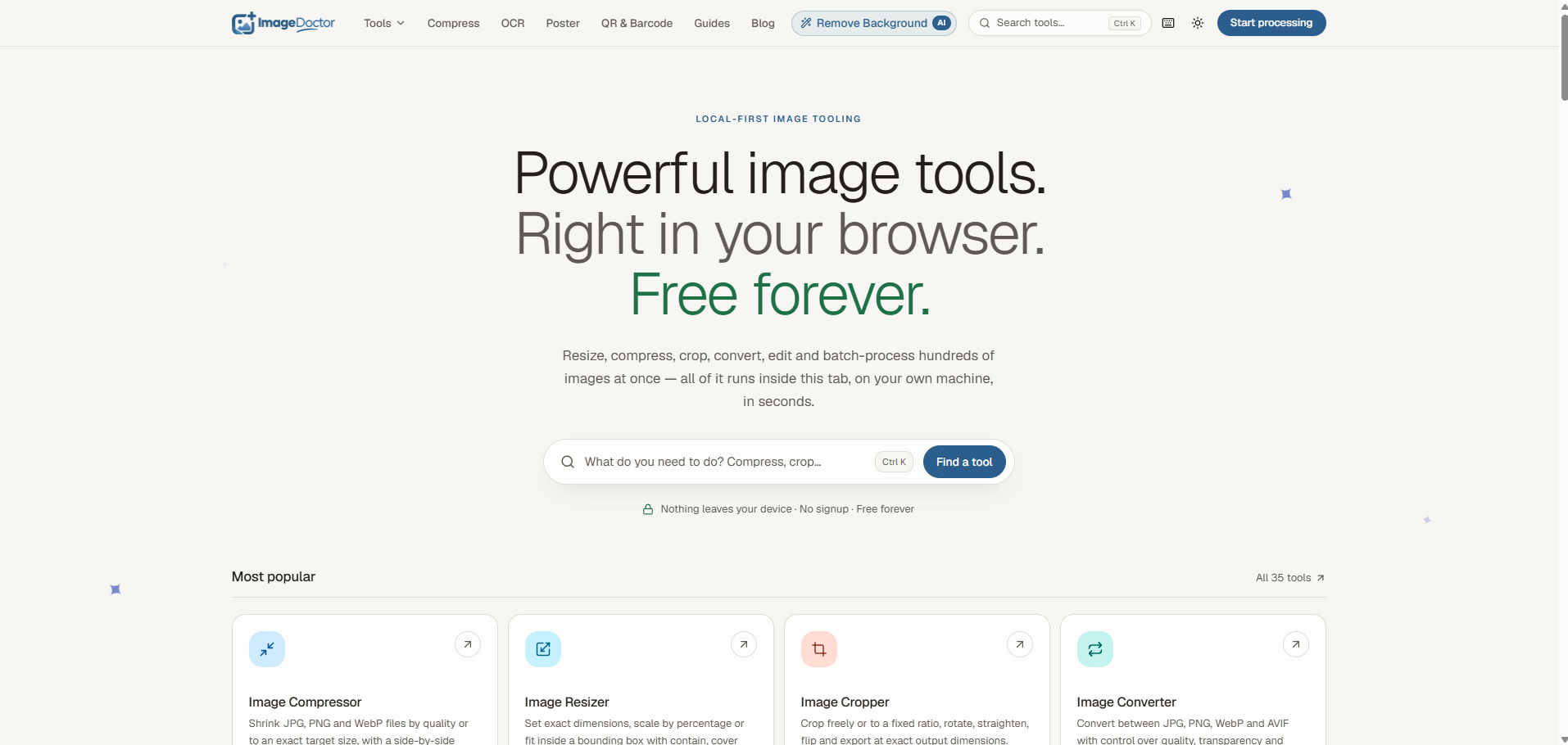
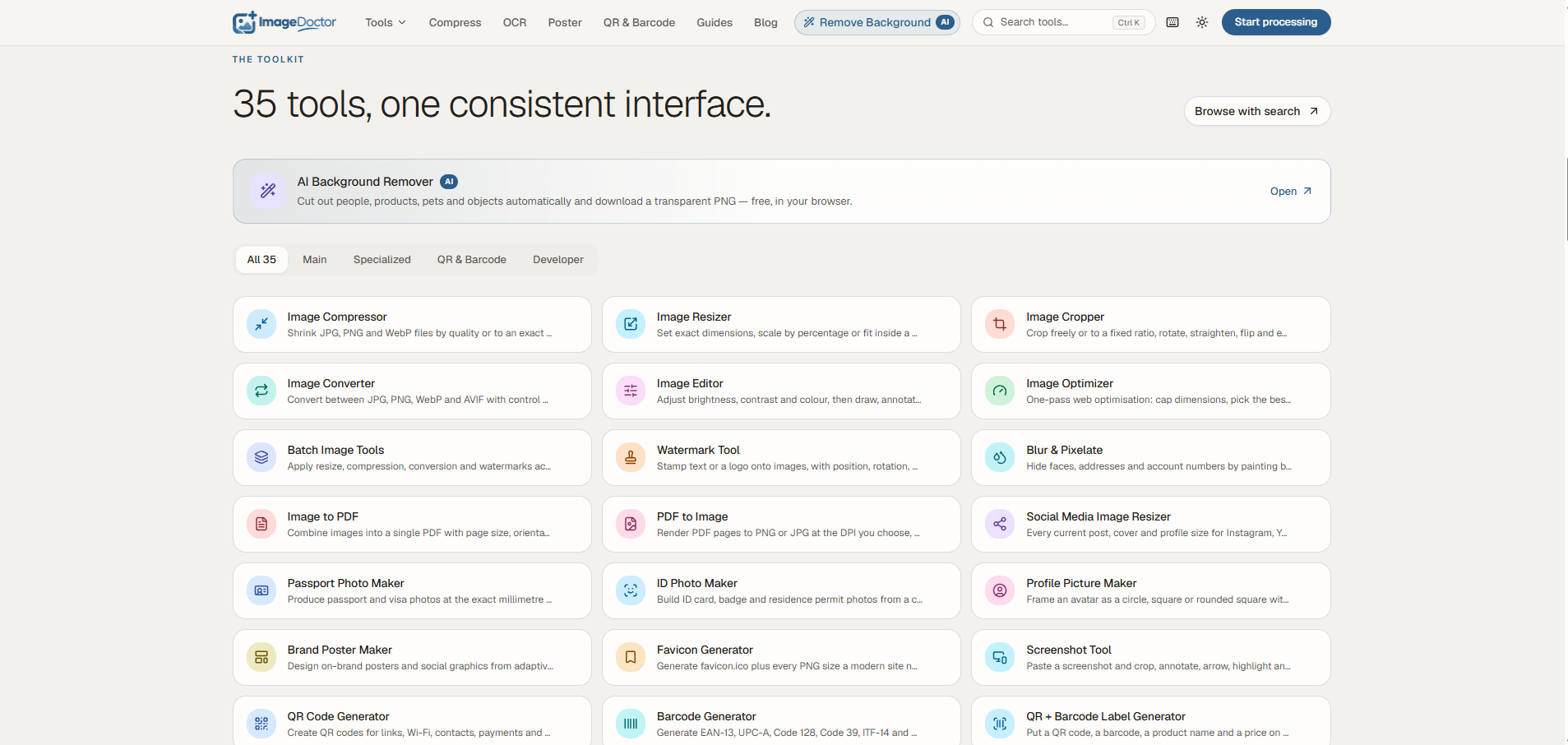
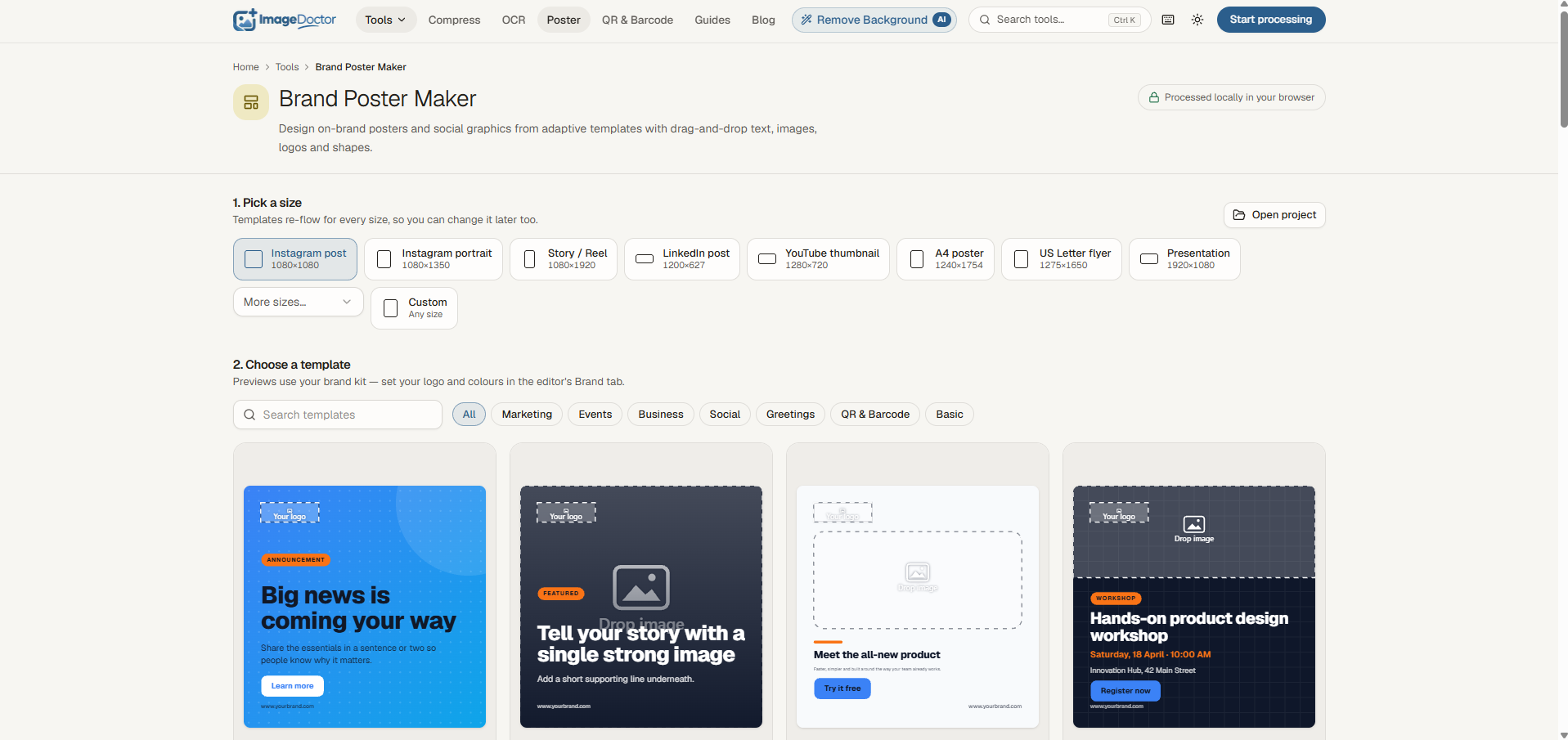
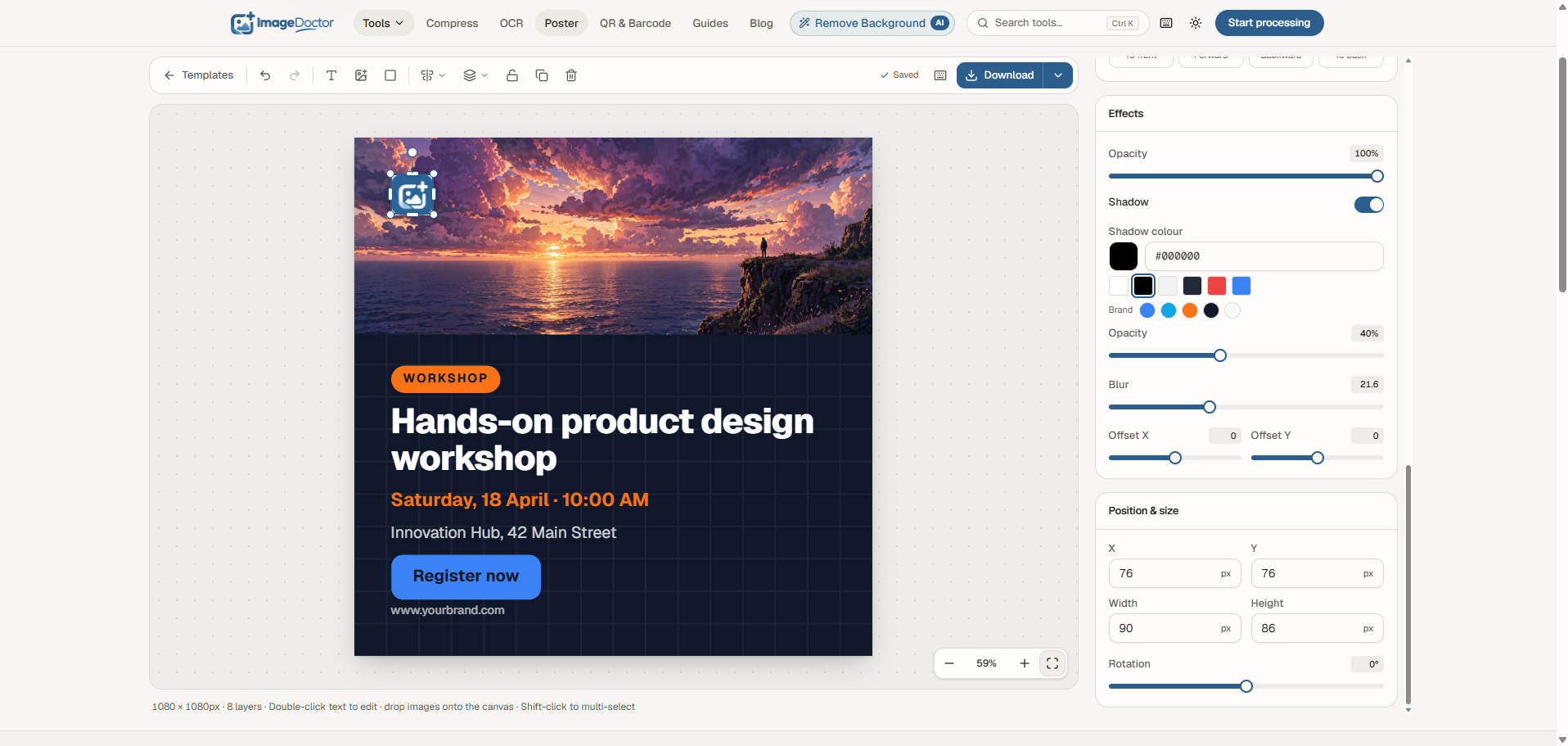
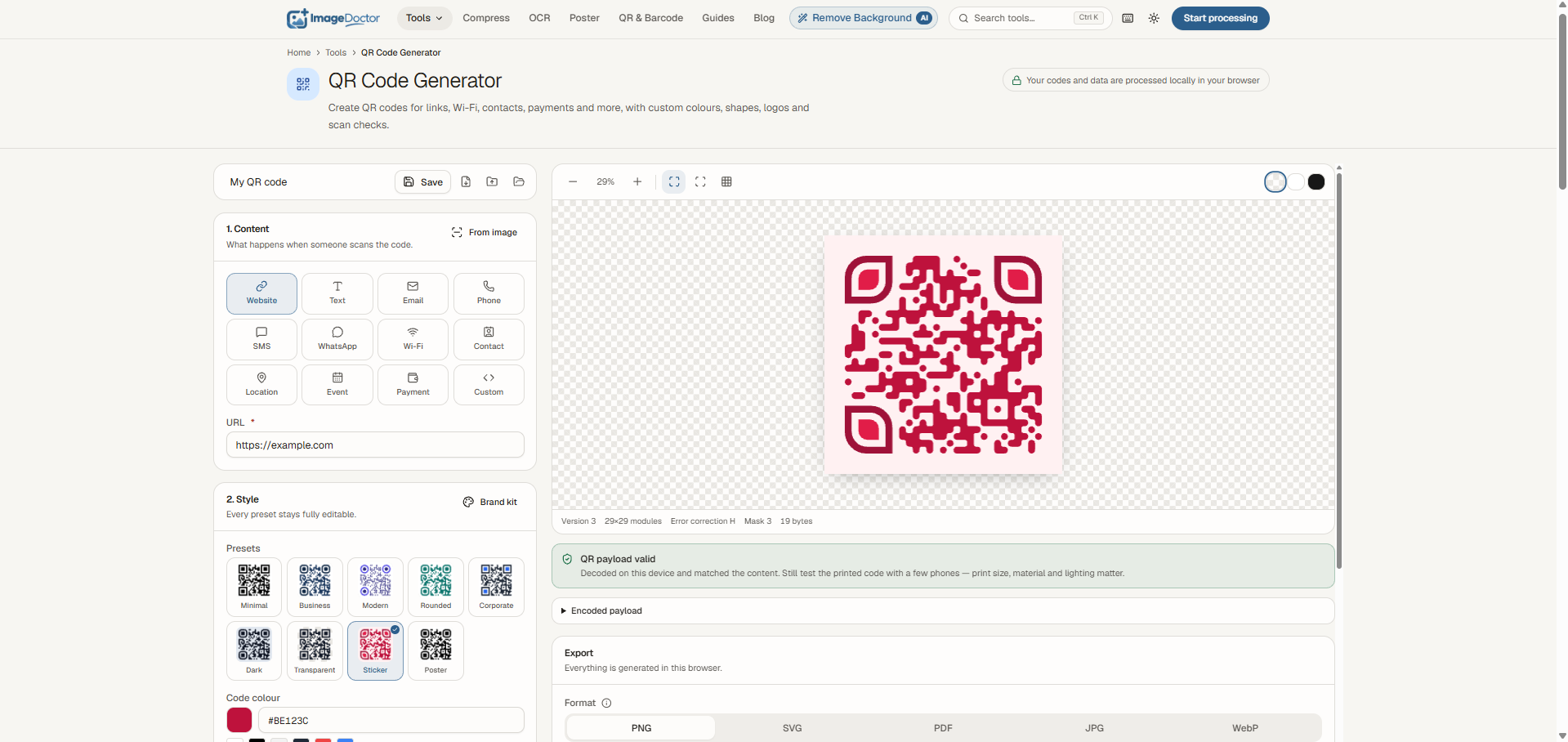
ImgDoctor is a simple collection of 35 free image tools for everyday image tasks. Instead of opening different websites for different jobs, you can compress, resize, convert, crop, remove backgrounds, extract text, and more from one place.
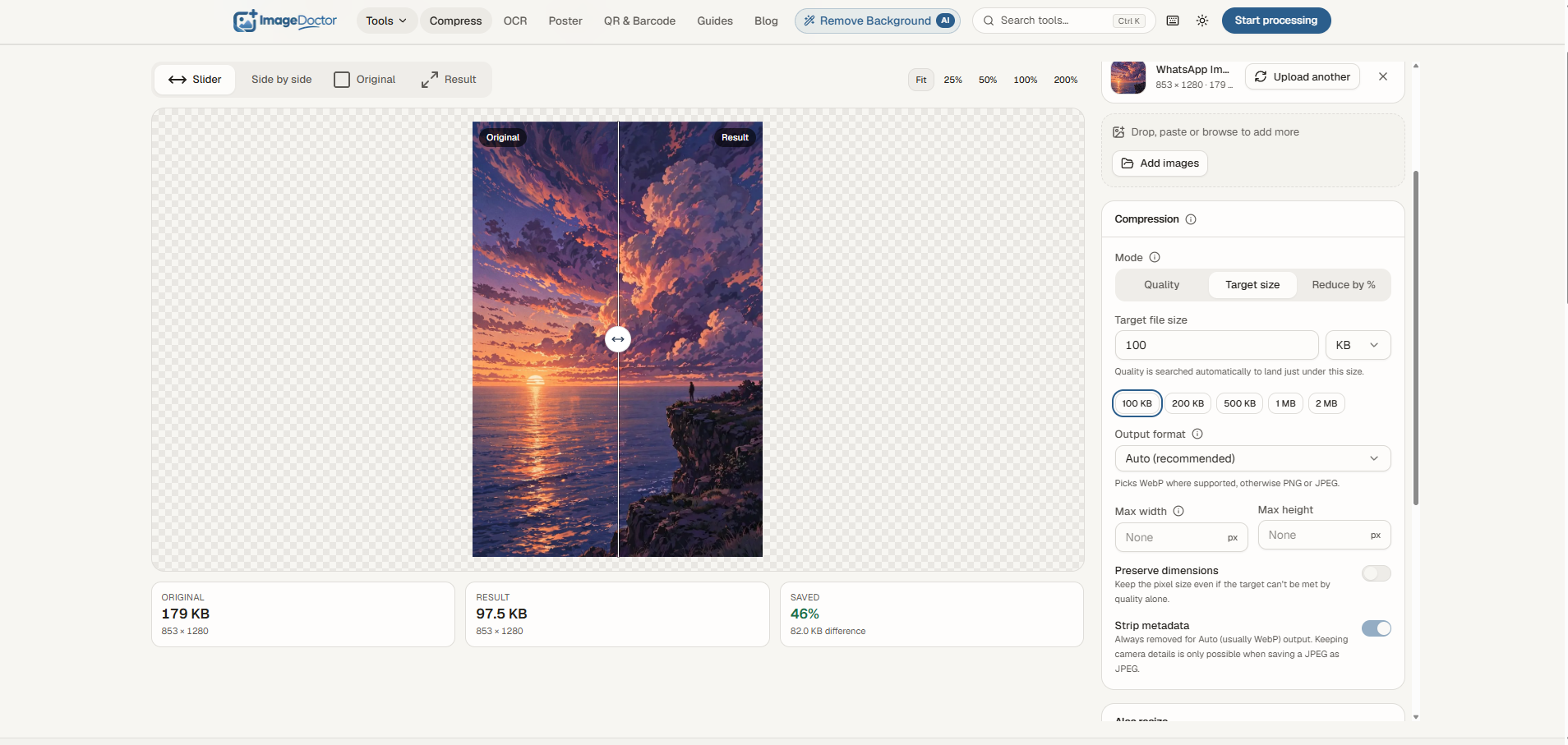
Everything is designed to be quick and straightforward: choose a tool, process your image, and download the result.
Features
• 35 image tools in one place
• Image compression and resizing
• Image format conversion
• Crop, rotate, and optimize images
• Background removal
• OCR text extraction
• Browser-based image processing
• Simple, fast, and easy-to-use interface
• Free to use
Use Cases
• Compress images before uploading to websites
• Resize images for social media and websites
• Convert images between different formats
• Remove backgrounds from product photos
• Extract text from images using OCR
• Prepare images for blogs, ecommerce, and online projects
• Quickly handle everyday image editing tasks without installing software

Comments


I built ImgDoctor because I kept running into the same small problem: simple image tasks often meant opening a different website for each one. Compress here, convert there, resize somewhere else, remove a background on another tool. So I decided to put the everyday image tools I actually needed into one simple place. ImgDoctor now has 35 tools for things like compression, conversion, resizing, cropping, background removal, and OCR. It’s still growing, and I’d genuinely love to hear which image tool you think is missing.
This solves a real annoyance — every small image task used to mean hunting down yet another single-purpose site, half of them buried in ads or demanding a signup before the download. Having compression, resizing, format conversion, background removal and OCR in one place is the right call, and the fact that the processing is browser-based is a genuine plus for client work: images don't have to leave your machine, and there's nothing to install. One question: is batch processing on the roadmap — e.g. compressing or converting a whole folder of product photos at once? That's the one job I still end up opening a desktop tool for.


Having compress, resize, convert and background removal in one place is handy. We build websites for local businesses, and oversized photos are the most common reason their pages load slowly on phones. A batch option that resizes and converts a whole folder of shop photos to WebP in one go would save a lot of time for anyone preparing images for a website.


The browser-based processing is the biggest win here — compressing, converting and running OCR without uploading images to a server matters for client work. One question: is there a limit on how many images you can batch-process at once, and which languages does the OCR support? Those two details would decide whether I can use it for bulk ecommerce photo prep.

The browser-based approach is what stands out for me — being able to compress, convert and run OCR in one place beats bookmarking a different single-purpose site for every small image task. For product photos and blog images that workflow (choose a tool, process, download) looks genuinely quick. Quick question: for batch jobs like resizing a whole set of images, can you apply the same settings across all of them at once?

Putting 35 tools in one browser-based place makes sense for the small jobs that interrupt work — compressing an image before upload, converting a format, or extracting text with OCR without signing up for another service. Since processing is in the browser, does that mean images never leave the device? And is there a batch option if I need to resize or compress 20 product photos at once?

Having 35 image tools in one place is handy, and the OCR and background removal in particular replace a lot of tab-hopping. Since it's browser-based processing, are images actually kept local on the device rather than uploaded? Stating that clearly on the page would reassure people compressing private photos.

Putting 35 image tools in one place is practical, and the browser-based processing is a good fit for compressing and converting photos without installing anything. Could you clarify whether images are processed locally or uploaded to a server, especially for background removal and OCR? That detail matters to people working with client or product photos.
Bundling compress, resize, convert, crop, background removal and OCR behind one picker is the right shape for the "make this image smaller before I upload it" job. The listing says processing is browser-based, which matters for product photos and for OCR of anything sensitive: compress, crop and convert can stay on-device, but background removal and OCR often round-trip the file. If those two leave the browser, they should say so before the drop, not only in a privacy page. Do the heavier tools show, on the tool itself, whether the image stays local?
Premium Products

















































Sponsors
Buy

Makers
Makers
Comments
I built ImgDoctor because I kept running into the same small problem: simple image tasks often meant opening a different website for each one. Compress here, convert there, resize somewhere else, remove a background on another tool. So I decided to put the everyday image tools I actually needed into one simple place. ImgDoctor now has 35 tools for things like compression, conversion, resizing, cropping, background removal, and OCR. It’s still growing, and I’d genuinely love to hear which image tool you think is missing.
This solves a real annoyance — every small image task used to mean hunting down yet another single-purpose site, half of them buried in ads or demanding a signup before the download. Having compression, resizing, format conversion, background removal and OCR in one place is the right call, and the fact that the processing is browser-based is a genuine plus for client work: images don't have to leave your machine, and there's nothing to install. One question: is batch processing on the roadmap — e.g. compressing or converting a whole folder of product photos at once? That's the one job I still end up opening a desktop tool for.
Having compress, resize, convert and background removal in one place is handy. We build websites for local businesses, and oversized photos are the most common reason their pages load slowly on phones. A batch option that resizes and converts a whole folder of shop photos to WebP in one go would save a lot of time for anyone preparing images for a website.
The browser-based processing is the biggest win here — compressing, converting and running OCR without uploading images to a server matters for client work. One question: is there a limit on how many images you can batch-process at once, and which languages does the OCR support? Those two details would decide whether I can use it for bulk ecommerce photo prep.
The browser-based approach is what stands out for me — being able to compress, convert and run OCR in one place beats bookmarking a different single-purpose site for every small image task. For product photos and blog images that workflow (choose a tool, process, download) looks genuinely quick. Quick question: for batch jobs like resizing a whole set of images, can you apply the same settings across all of them at once?
Putting 35 tools in one browser-based place makes sense for the small jobs that interrupt work — compressing an image before upload, converting a format, or extracting text with OCR without signing up for another service. Since processing is in the browser, does that mean images never leave the device? And is there a batch option if I need to resize or compress 20 product photos at once?
Having 35 image tools in one place is handy, and the OCR and background removal in particular replace a lot of tab-hopping. Since it's browser-based processing, are images actually kept local on the device rather than uploaded? Stating that clearly on the page would reassure people compressing private photos.
Putting 35 image tools in one place is practical, and the browser-based processing is a good fit for compressing and converting photos without installing anything. Could you clarify whether images are processed locally or uploaded to a server, especially for background removal and OCR? That detail matters to people working with client or product photos.
Bundling compress, resize, convert, crop, background removal and OCR behind one picker is the right shape for the "make this image smaller before I upload it" job. The listing says processing is browser-based, which matters for product photos and for OCR of anything sensitive: compress, crop and convert can stay on-device, but background removal and OCR often round-trip the file. If those two leave the browser, they should say so before the drop, not only in a privacy page. Do the heavier tools show, on the tool itself, whether the image stays local?
Premium Products
New to Fazier?

Find your next favorite product or submit your own. Made by @FalakDigital.
Copyright ©2026. All Rights Reserved