
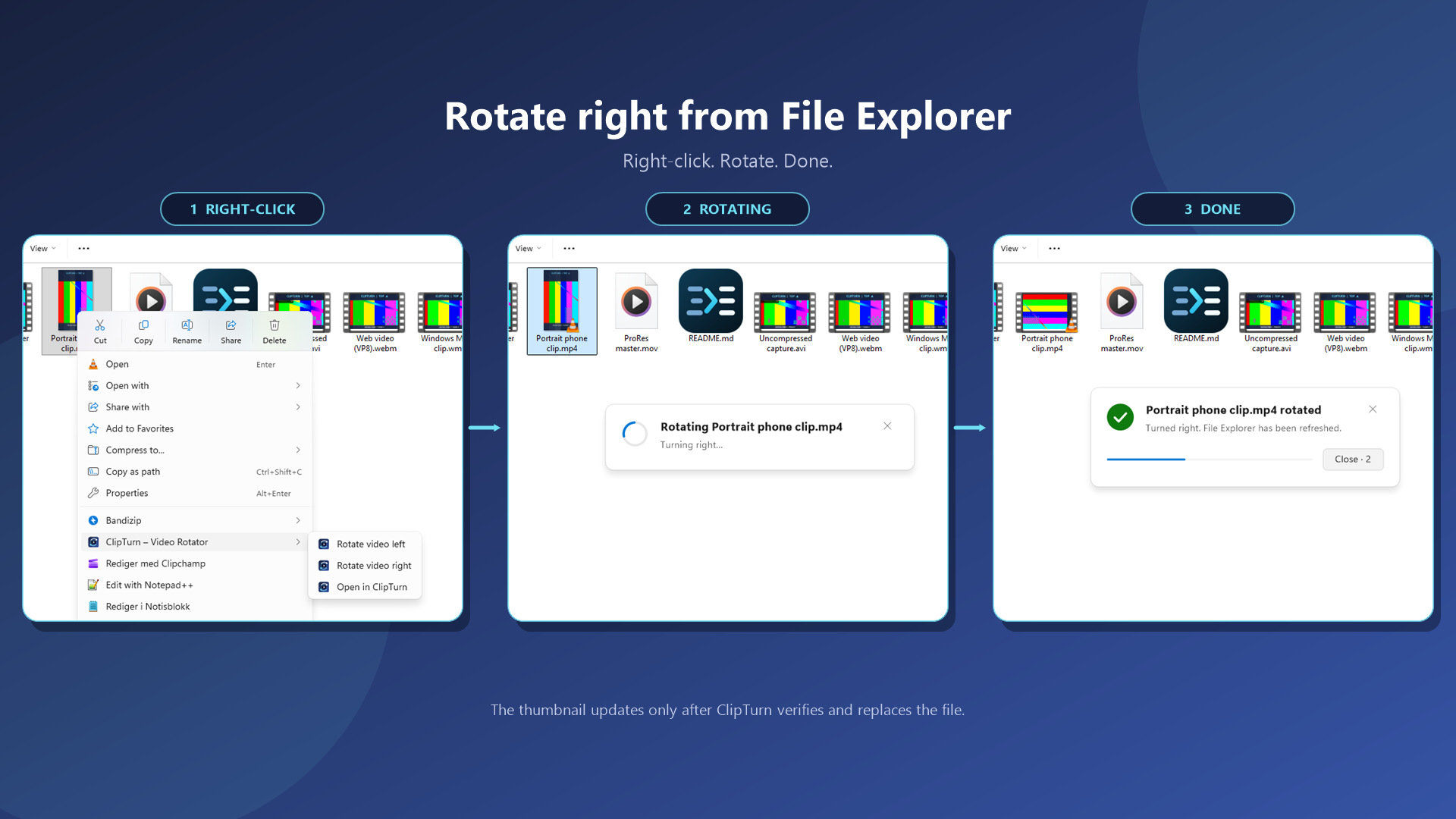
Windows lets you right-click a photo and rotate it, but it offers nothing for video. ClipTurn adds Rotate left and Rotate right to the File Explorer context menu, so a clip your phone saved sideways can be fixed in two clicks without opening an editor or picking an export preset.
Most rotation tools take one of two approaches. Some flip an orientation flag in the container, which looks right on your own machine but reverts on players and websites that ignore the flag. Others hand you a codec dropdown, a bitrate field and a quality slider, and leave you guessing which combination damages the file least. ClipTurn physically turns the picture inside the file and chooses the processing path itself, aiming for a visually lossless result in the source codec whenever a compatible Windows encoder exists.
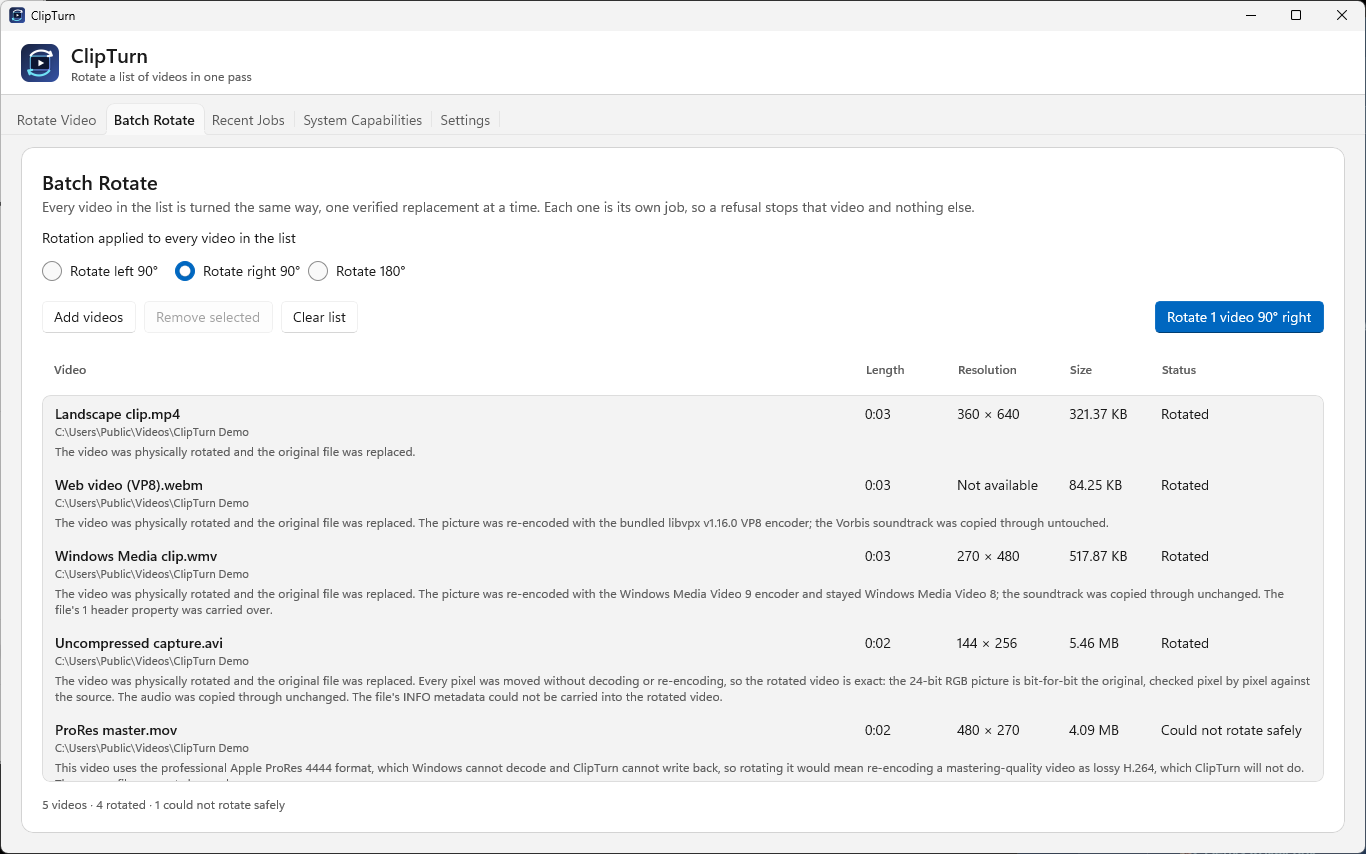
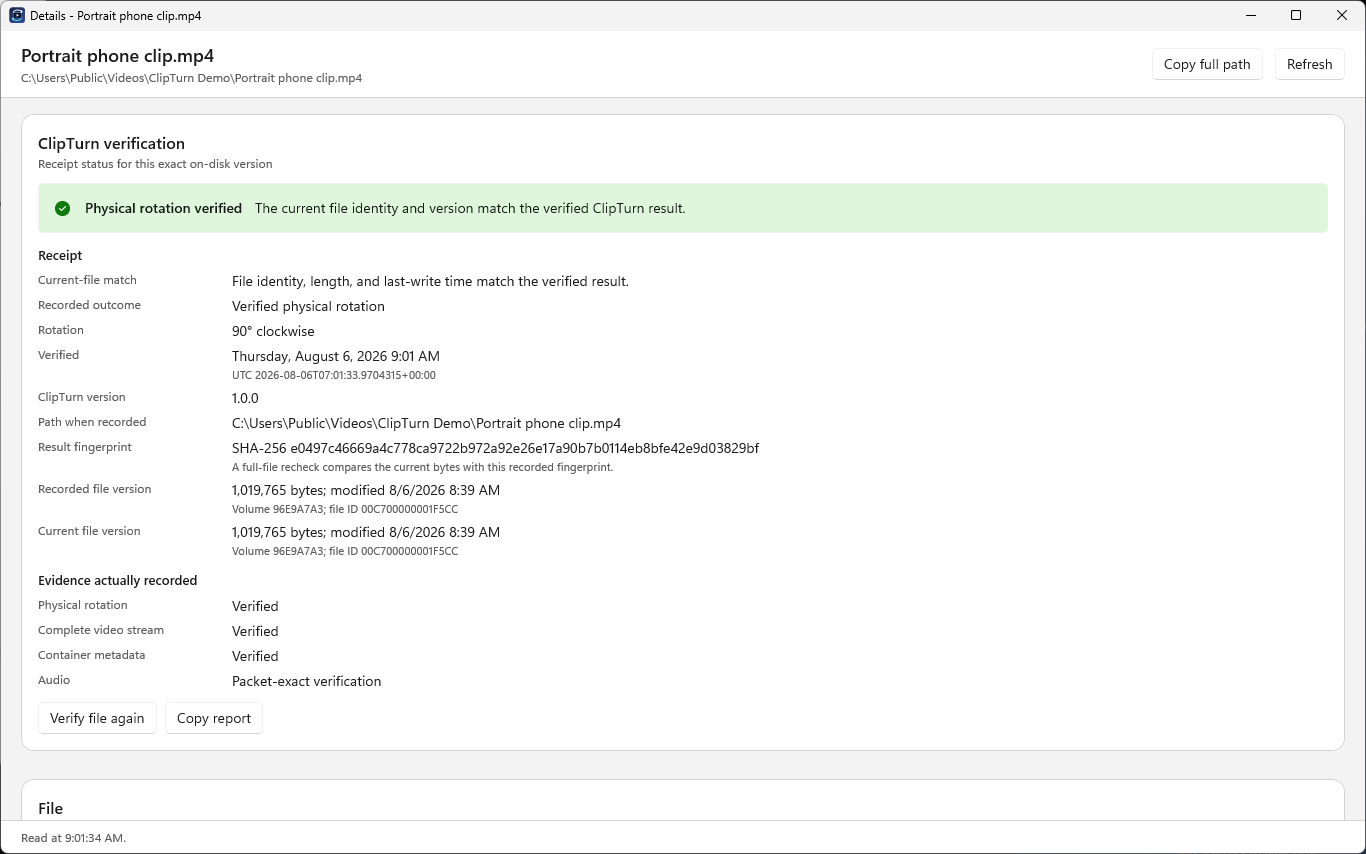
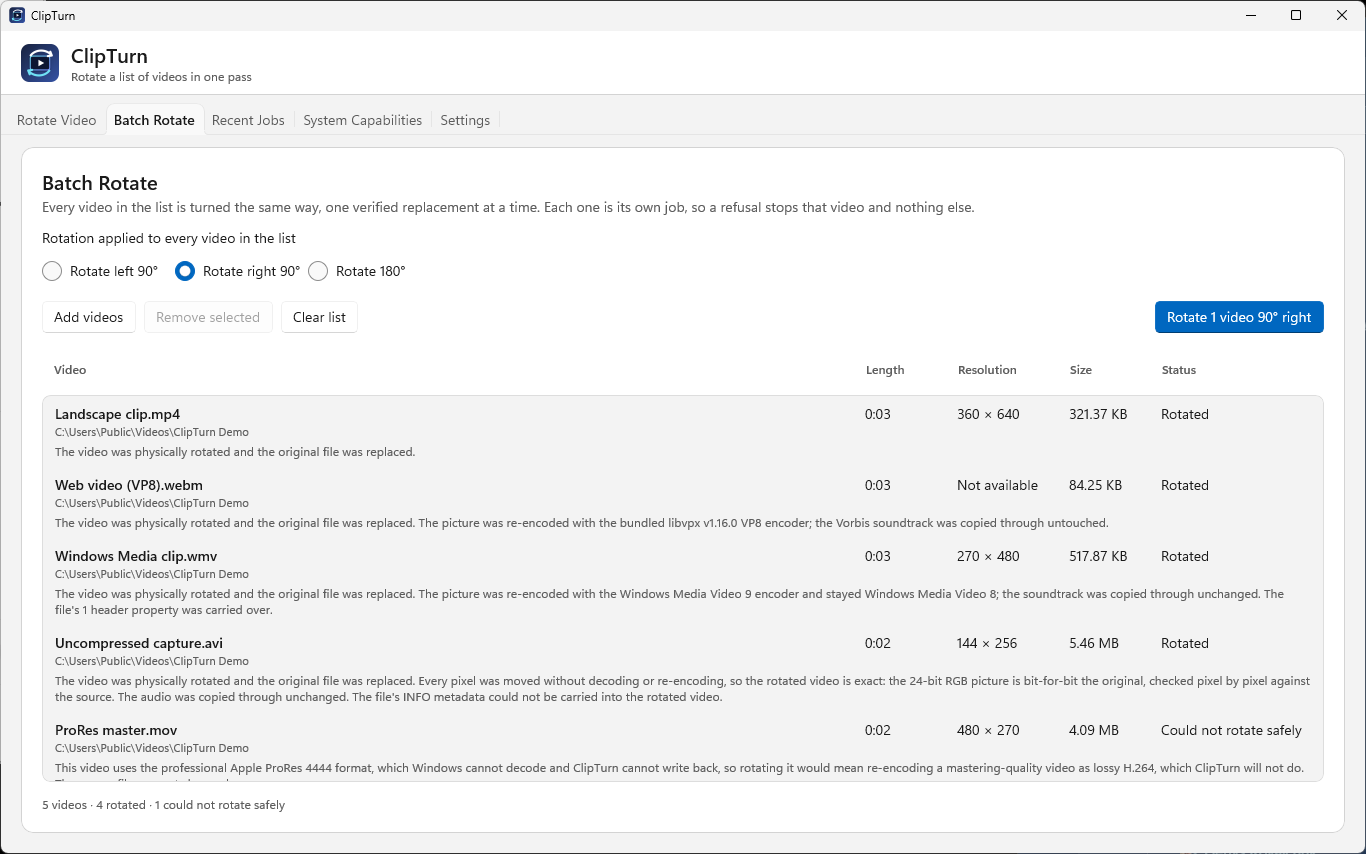
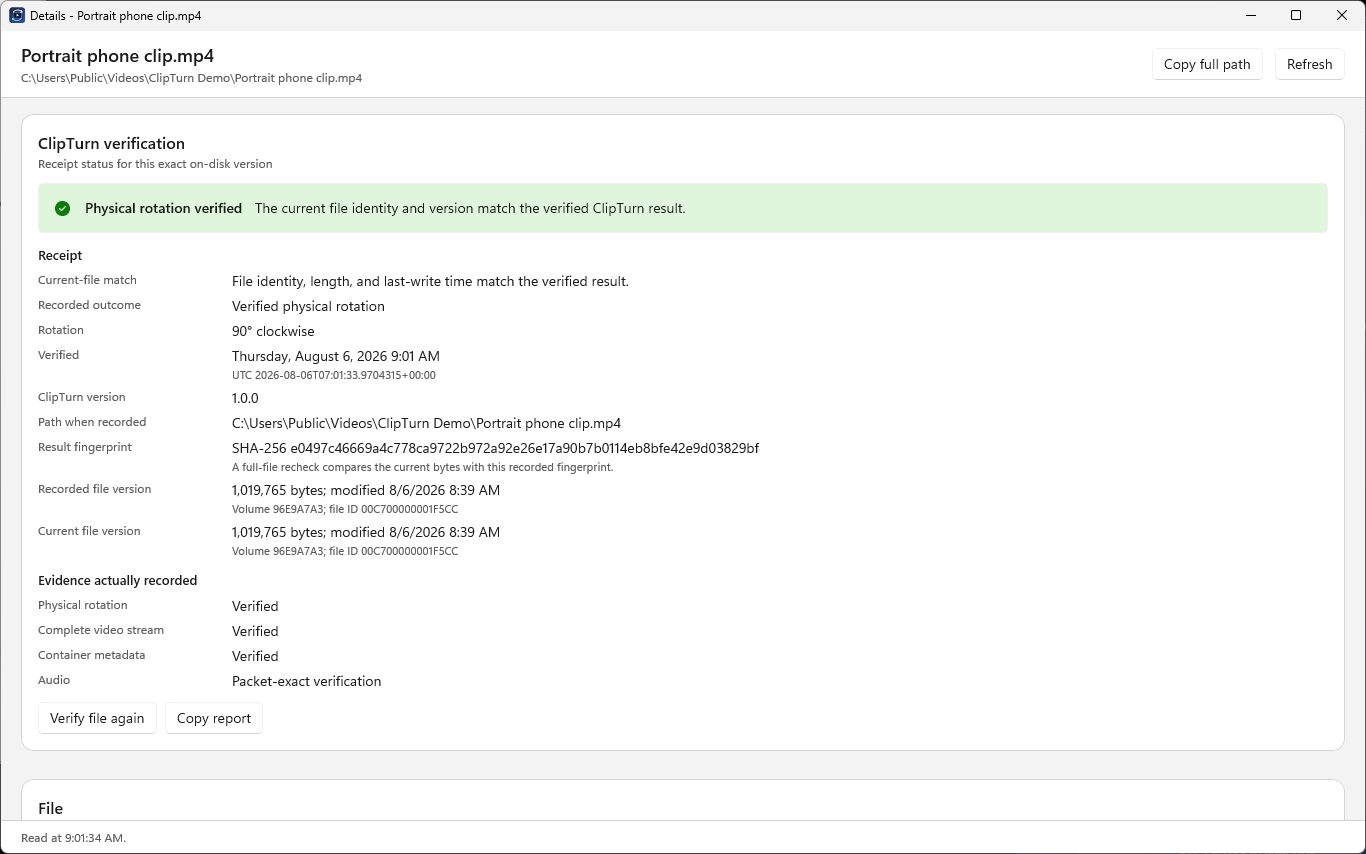
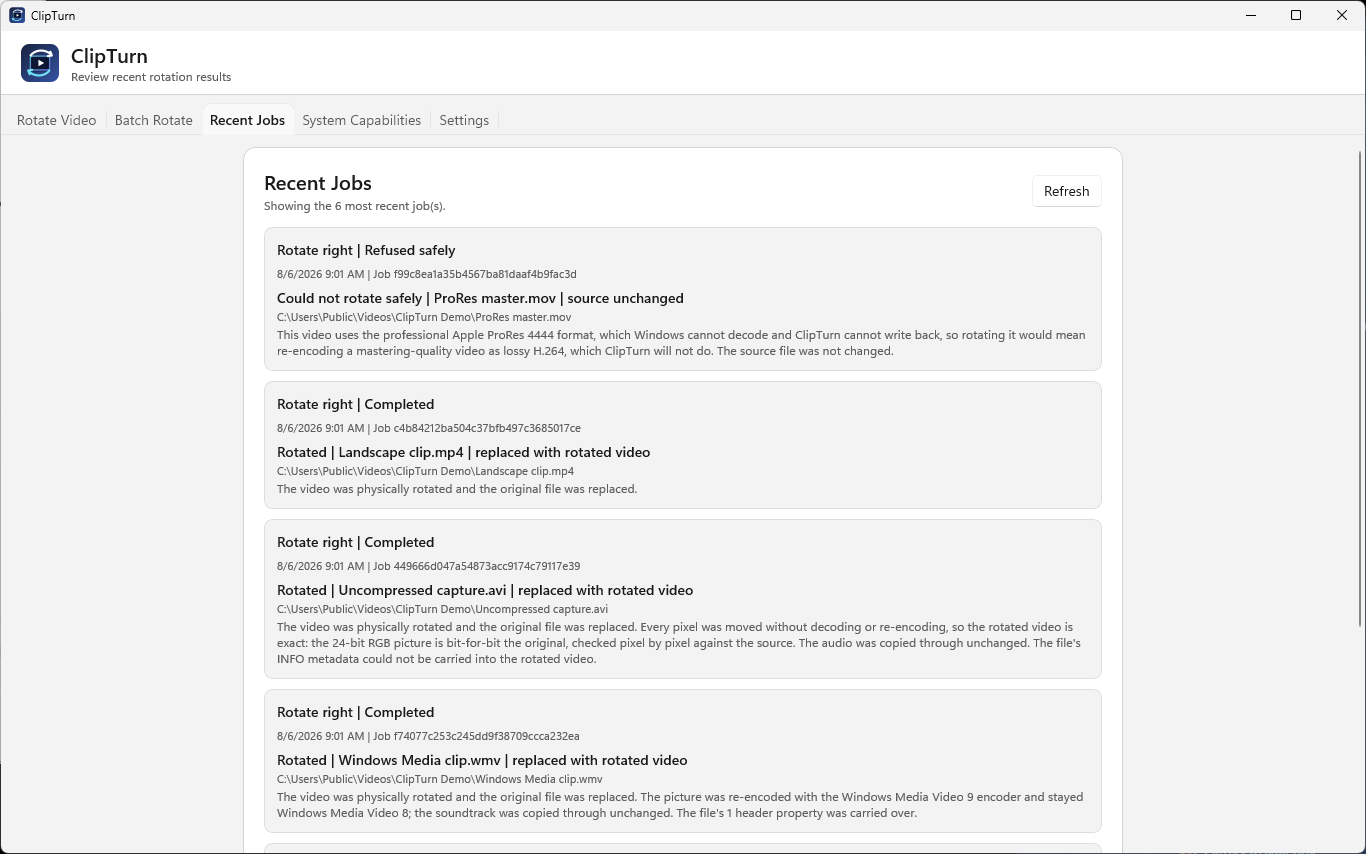
Audio, subtitles, metadata and HDR information are carried across wherever the container allows. Every result is verified against the source before it is allowed to replace the original, and a receipt records exactly what was checked. When a faithful rotation is not possible, ClipTurn refuses and explains why instead of quietly producing a worse file. Apple ProRes is the usual example, because the codec cannot be written back on Windows and rotating it would mean re-encoding a mastering-quality file as lossy H.264.
I am the developer and this is a solo project. ClipTurn is free on the Microsoft Store, and I would genuinely like feedback on where it falls over.
Features
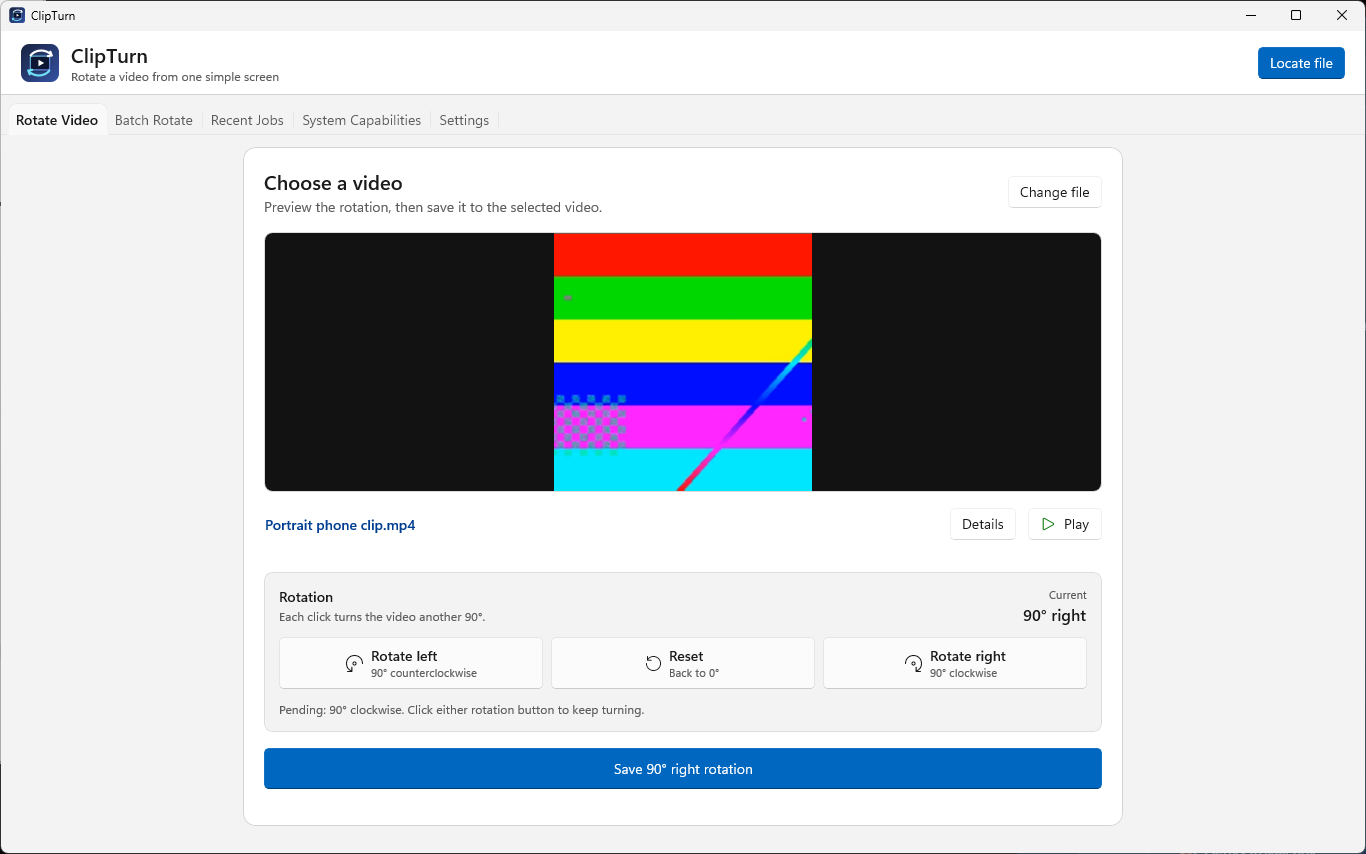
- Rotate left and Rotate right directly in the Windows File Explorer right-click menu
- Turns the picture inside the file, rather than only flipping an orientation flag
- No codec dropdown, bitrate field or quality slider - ClipTurn picks the path itself
- Batch Rotate for turning a whole list of files in one run
- Codec, metadata, subtitles and HDR carried across wherever the container allows
- Every result verified against the source, with a receipt showing what was checked
- Refuses and explains when a faithful rotation is not possible, instead of silently re-encoding
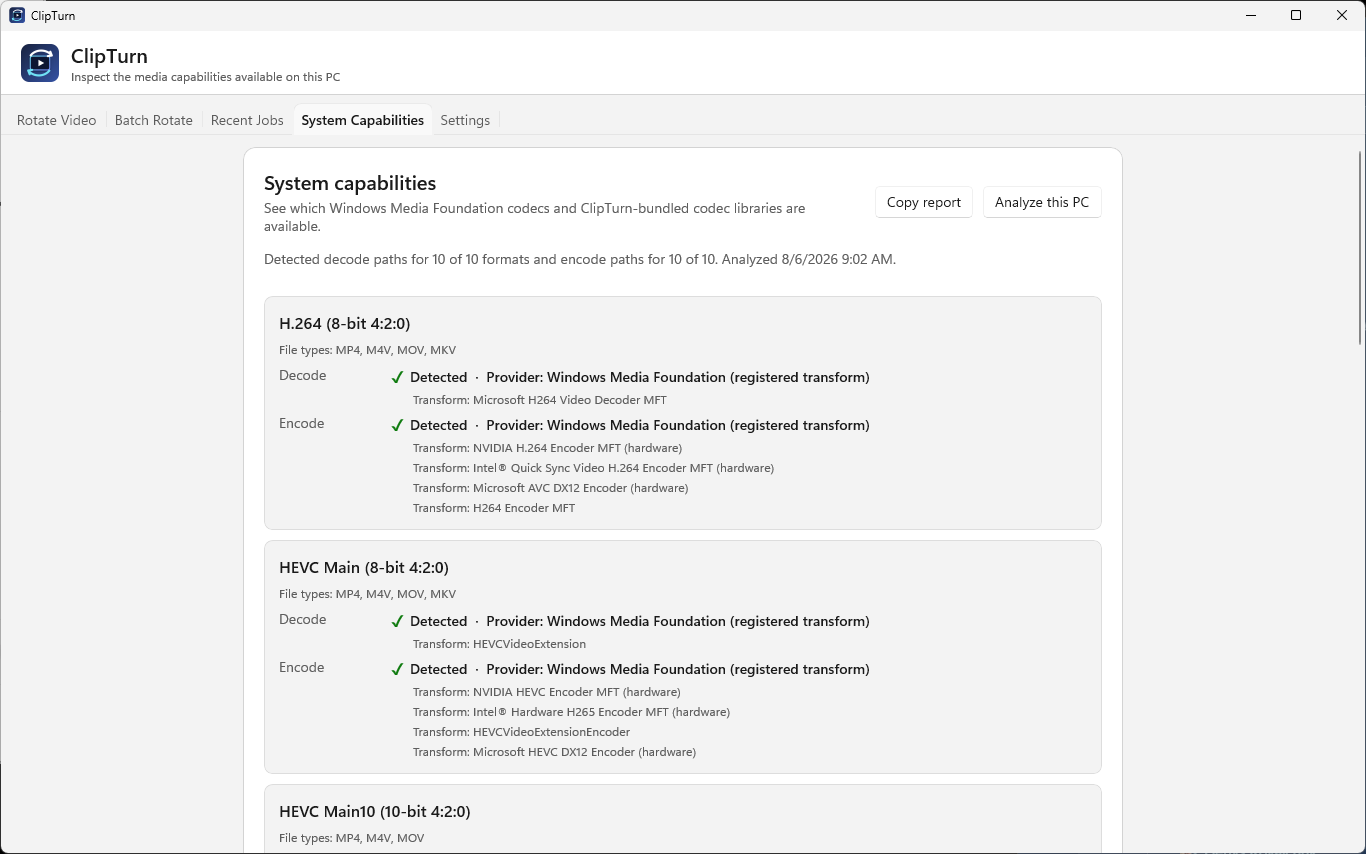
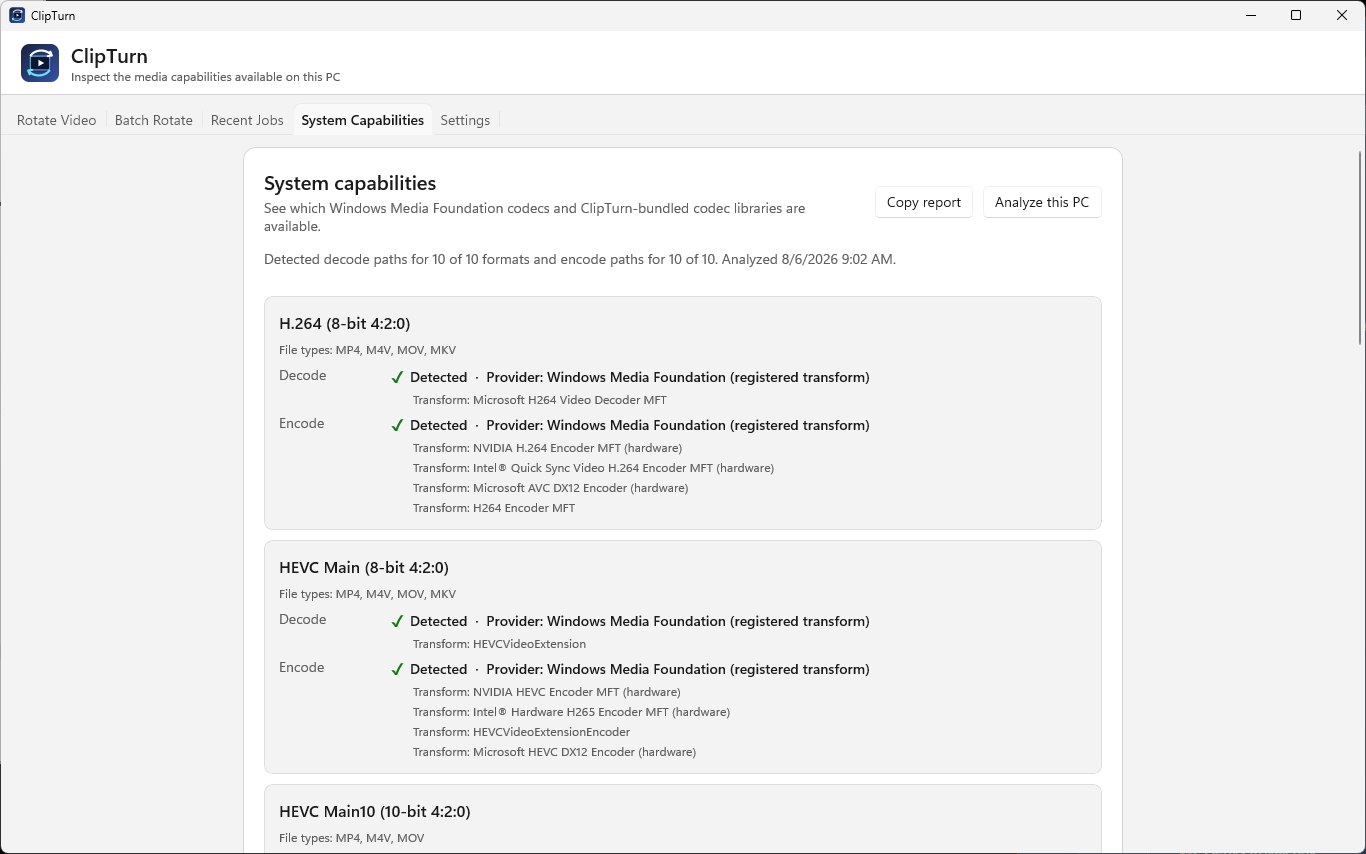
- Supports MP4, M4V, MOV, MKV, WebM, WMV and uncompressed AVI
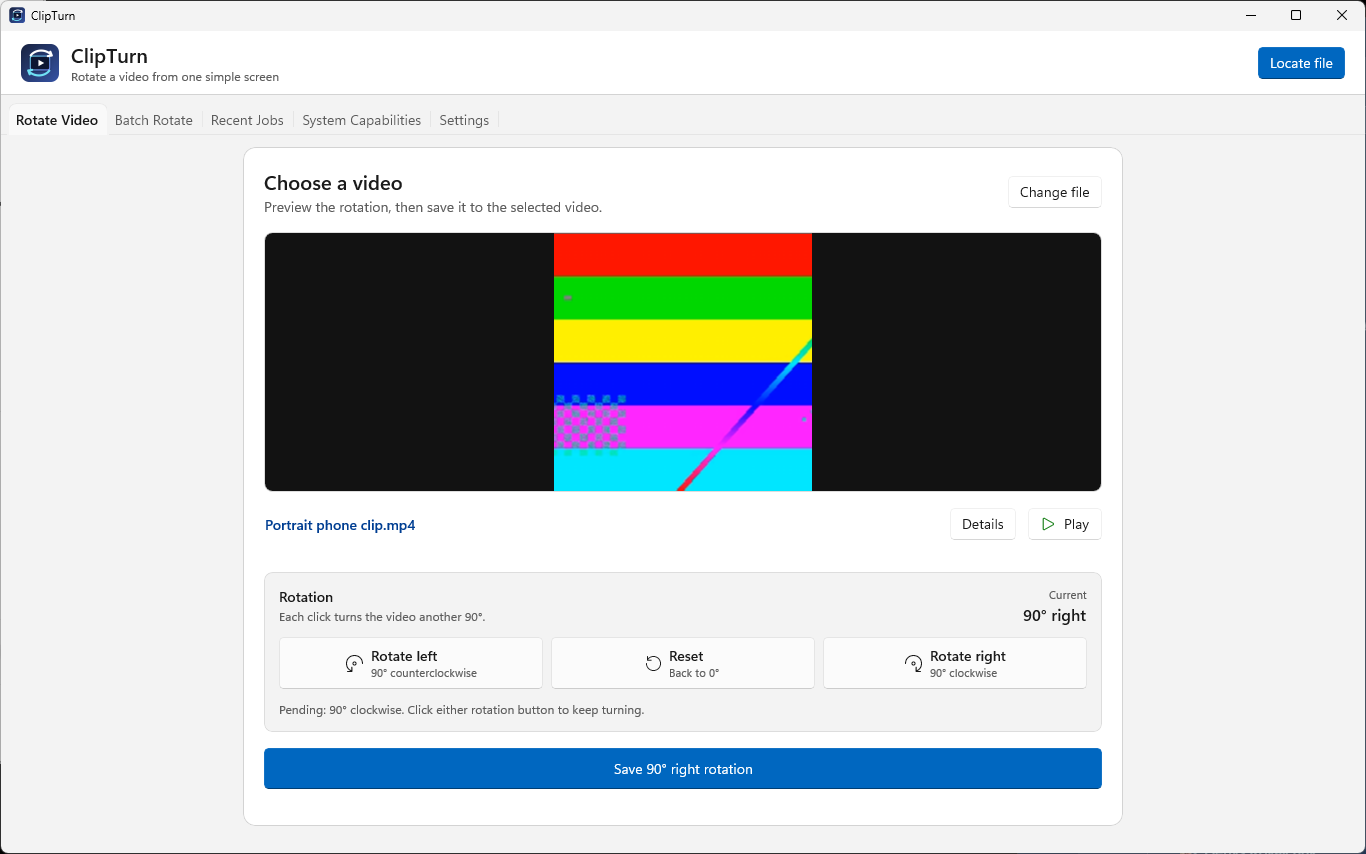
- Live preview before you commit, and a dark mode
- Works offline, no account, no ads
Use Cases
- Fixing a phone clip that recorded sideways before you send or upload it
- Turning a whole folder of holiday or event videos the right way up in one pass
- Correcting footage from an action camera or dashcam that was mounted upside down
- Rotating a screen recording or gameplay capture saved in the wrong orientation
- Straightening old family videos where players ignore the orientation flag
- Preparing vertical clips for social platforms without routing them through a full editor

Comments






I built ClipTurn because of a small thing that kept annoying me. In Windows 11 you can right-click a photo and rotate it, and that is the end of the job. Do the same to a video and there is nothing there. The usual fix is to install a video tool, and then you are staring at a codec dropdown, a bitrate field and a quality slider, guessing which combination ruins the file least. For a clip your phone happened to save sideways, that is an absurd amount of decision-making. So ClipTurn puts Rotate left and Rotate right in the File Explorer context menu and makes those decisions for you. It turns the actual picture inside the file rather than flipping an orientation flag that half the players ignore, keeps the codec, metadata, subtitles and HDR wherever the container allows, and verifies the result against the source before it replaces anything. The part I am most attached to is that it will refuse. If it cannot rotate a file faithfully it stops and explains why, instead of quietly handing back something worse. ProRes is the obvious case, because Windows cannot write that codec back and the only alternative would be re-encoding a mastering-quality file to lossy H.264. That is not a trade I want to make on someone's behalf without saying so. It is free on the Microsoft Store, there is no account and no ads, and I am a solo developer. What I would really like out of this launch is for people to throw awkward files at it and tell me where it breaks.


ClipTurn has great potential and offers some useful features, but I encountered a few issues that could be improved. Please contact me so I can share detailed feedback and suggest the changes I'd like to see. Email: [email protected]

可以发这条: The decision to rotate the actual video frame instead of relying on orientation metadata solves a real compatibility problem, especially for clips shared across different players and platforms. I also appreciate that ClipTurn refuses lossy conversions when it cannot preserve the source faithfully—does the verification receipt show which metadata, subtitle, and HDR fields were retained for each format?
可以发这条: The decision to rotate the actual video frame instead of relying on orientation metadata solves a real compatibility problem, especially for clips shared across different players and platforms. I also appreciate that ClipTurn refuses lossy conversions when it cannot preserve the source faithfully—does the verification receipt show which metadata, subtitle, and HDR fields were retained for each format?

ClipTurn is a simple and useful tool that makes video rotation quick and hassle-free directly from the Windows File Explorer context menu. At TeroTAM, we find it helpful for quickly correcting video orientation without opening complex editing software, saving time when preparing videos for blogs, presentations, social media, and internal use.

Love how opinionated this is in the right way — refusing to touch a file rather than silently re-encoding it to something worse is exactly the kind of restraint I wish more tools had. The right-click menu integration is such an obvious win too; I've genuinely closed a video editor before just because rotating one sideways phone clip felt like overkill. Nice work shipping this solo.


The "verifies every result against the source and refuses instead of silently re-encoding" approach is the part that stands out to me — most rotation tools optimize for "did it run" rather than "did it stay lossless," so seeing a tool that treats a failed rotation as a hard stop instead of a silent quality hit is refreshing. Curious how you're doing the verification step (frame hash comparison? checksum on the decoded stream?) — and whether ProRes support is something you'd consider adding later via a bundled decoder, or if that's a permanent Windows-side limitation you're just going to keep surfacing honestly like this.

<a href="https://texasestimators.com/">Texas construction estimating services</a>provides construction cost estimating and quantity takeoff services to contractors and developers across the state of Texas. The company's estimators use industry-standard tools including Bluebeam, Planswift, and Xactimate to quantify materials for every trade, from concrete and masonry to electrical and mechanical systems.

The decision to rotate the actual video frame instead of relying on orientation metadata solves a real compatibility problem, especially for clips shared across different players and platforms. I also appreciate that ClipTurn refuses lossy conversions when it cannot preserve the source faithfully—does the verification receipt show which metadata, subtitle, and HDR fields were retained for each format?

The "refuses instead of silently degrading" choice is the rare one, and Batch Rotate for a whole folder makes it more interesting rather than less: if 40 of 200 files in a batch hit the ProRes-style wall, does the run stop and report all 40 up front, or fail one at a time as it reaches each one mid-batch? For someone kicking off a folder and walking away, that changes whether they come back to a half-finished job with no summary or a clean list of exactly what didn't make it and why.

Refusing to process files when a faithful rotation isn’t possible is much better than silently degrading the video. The ProRes example especially shows that the tool is designed with quality in mind. Ranked matchmaking inside a competitive game pairs you with opponents of similar skill for balanced fair matches. Calibrated competition prevents beginners from facing experts during their early learning sessions. https://getteenpattigold.com.pk/
Premium Products













































Sponsors
Buy

Awards
View all
Awards
View allMakers
Makers
Comments
I built ClipTurn because of a small thing that kept annoying me. In Windows 11 you can right-click a photo and rotate it, and that is the end of the job. Do the same to a video and there is nothing there. The usual fix is to install a video tool, and then you are staring at a codec dropdown, a bitrate field and a quality slider, guessing which combination ruins the file least. For a clip your phone happened to save sideways, that is an absurd amount of decision-making. So ClipTurn puts Rotate left and Rotate right in the File Explorer context menu and makes those decisions for you. It turns the actual picture inside the file rather than flipping an orientation flag that half the players ignore, keeps the codec, metadata, subtitles and HDR wherever the container allows, and verifies the result against the source before it replaces anything. The part I am most attached to is that it will refuse. If it cannot rotate a file faithfully it stops and explains why, instead of quietly handing back something worse. ProRes is the obvious case, because Windows cannot write that codec back and the only alternative would be re-encoding a mastering-quality file to lossy H.264. That is not a trade I want to make on someone's behalf without saying so. It is free on the Microsoft Store, there is no account and no ads, and I am a solo developer. What I would really like out of this launch is for people to throw awkward files at it and tell me where it breaks.
ClipTurn has great potential and offers some useful features, but I encountered a few issues that could be improved. Please contact me so I can share detailed feedback and suggest the changes I'd like to see. Email: [email protected]
可以发这条: The decision to rotate the actual video frame instead of relying on orientation metadata solves a real compatibility problem, especially for clips shared across different players and platforms. I also appreciate that ClipTurn refuses lossy conversions when it cannot preserve the source faithfully—does the verification receipt show which metadata, subtitle, and HDR fields were retained for each format?
可以发这条: The decision to rotate the actual video frame instead of relying on orientation metadata solves a real compatibility problem, especially for clips shared across different players and platforms. I also appreciate that ClipTurn refuses lossy conversions when it cannot preserve the source faithfully—does the verification receipt show which metadata, subtitle, and HDR fields were retained for each format?
ClipTurn is a simple and useful tool that makes video rotation quick and hassle-free directly from the Windows File Explorer context menu. At TeroTAM, we find it helpful for quickly correcting video orientation without opening complex editing software, saving time when preparing videos for blogs, presentations, social media, and internal use.
Love how opinionated this is in the right way — refusing to touch a file rather than silently re-encoding it to something worse is exactly the kind of restraint I wish more tools had. The right-click menu integration is such an obvious win too; I've genuinely closed a video editor before just because rotating one sideways phone clip felt like overkill. Nice work shipping this solo.
The "verifies every result against the source and refuses instead of silently re-encoding" approach is the part that stands out to me — most rotation tools optimize for "did it run" rather than "did it stay lossless," so seeing a tool that treats a failed rotation as a hard stop instead of a silent quality hit is refreshing. Curious how you're doing the verification step (frame hash comparison? checksum on the decoded stream?) — and whether ProRes support is something you'd consider adding later via a bundled decoder, or if that's a permanent Windows-side limitation you're just going to keep surfacing honestly like this.
<a href="https://texasestimators.com/">Texas construction estimating services</a>provides construction cost estimating and quantity takeoff services to contractors and developers across the state of Texas. The company's estimators use industry-standard tools including Bluebeam, Planswift, and Xactimate to quantify materials for every trade, from concrete and masonry to electrical and mechanical systems.
The decision to rotate the actual video frame instead of relying on orientation metadata solves a real compatibility problem, especially for clips shared across different players and platforms. I also appreciate that ClipTurn refuses lossy conversions when it cannot preserve the source faithfully—does the verification receipt show which metadata, subtitle, and HDR fields were retained for each format?
The "refuses instead of silently degrading" choice is the rare one, and Batch Rotate for a whole folder makes it more interesting rather than less: if 40 of 200 files in a batch hit the ProRes-style wall, does the run stop and report all 40 up front, or fail one at a time as it reaches each one mid-batch? For someone kicking off a folder and walking away, that changes whether they come back to a half-finished job with no summary or a clean list of exactly what didn't make it and why.
Refusing to process files when a faithful rotation isn’t possible is much better than silently degrading the video. The ProRes example especially shows that the tool is designed with quality in mind. Ranked matchmaking inside a competitive game pairs you with opponents of similar skill for balanced fair matches. Calibrated competition prevents beginners from facing experts during their early learning sessions. https://getteenpattigold.com.pk/
Premium Products
New to Fazier?

Find your next favorite product or submit your own. Made by @FalakDigital.
Copyright ©2026. All Rights Reserved