Bluetooth Audio Utility
See which Bluetooth codec Windows uses for your headphones
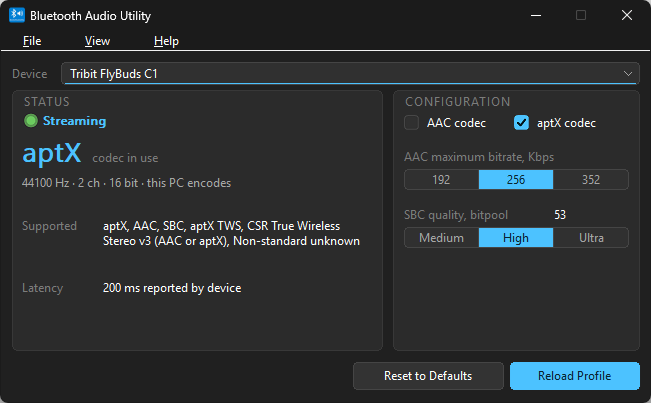
Bluetooth Audio Utility shows the live codec, sample rate, bitrate, and SBC bitpool on Windows. It also lets you change the Windows driver settings that decide which codec gets picked, without opening Registry Editor.
A native Windows app built in C++ for efficiency with less than 2.5MB resident memory usage.
Features
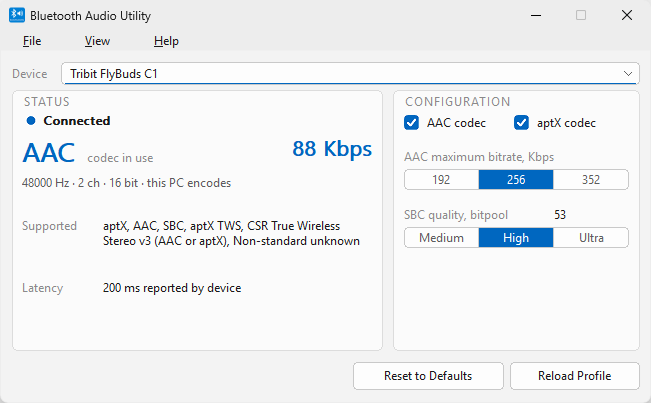
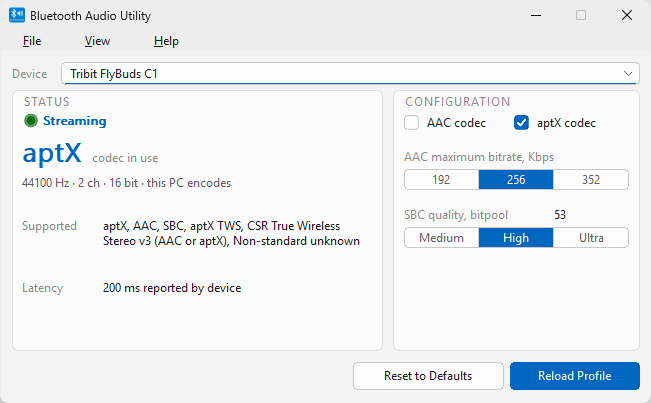
- Shows the codec on the live Bluetooth audio link: AAC, aptX or SBC.
- Shows sample rate, channel count, bit depth and bitrate in Kbps.
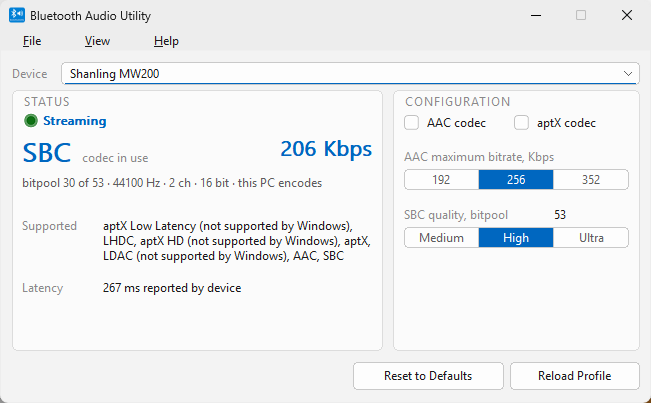
- Shows SBC quality as "bitpool N of M" and flags a degraded link.
- Lists the codecs your headphones support
- Tells you whether your PC or the Bluetooth radio encodes the audio.
- Shows the latency your device reports.
- Lets you turn AAC and aptX on or off to reach a lower-preference codec.
- Applies your changes when you click Reload Profile. You don't need to reboot or re-pair.
- Click Reset to Defaults to restore the Windows settings.
- Sits in the tray and alerts you when the codec changes, the device disconnects or the bitpool drops.
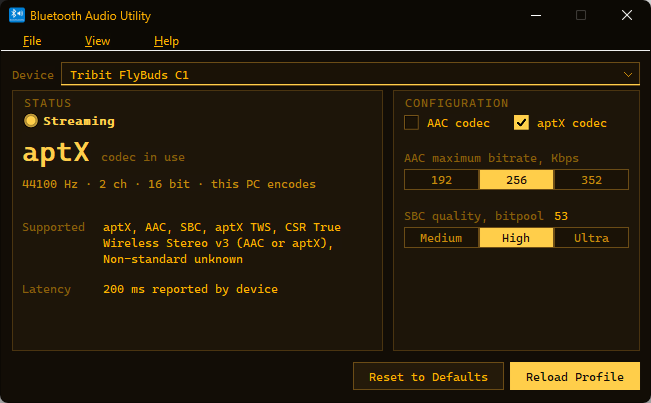
- Comes in Light, Dark and Amber CRT themes.
- Runs in English, French, Spanish, German and Italian.
- Needs no account and makes no network calls.
- Runs on Windows 10 and 11, x64 and ARM64.
Use Cases
- Check whether your expensive (or not) earbuds run AAC or aptX, or fell back to SBC.
- Find out why your headphones sound worse on your PC than on your phone.
- Turn off AAC, which Windows prefers, to get aptX on headphones that support it.
- Raise the bitpool for better sound on SBC-only headphones.
- Check whether Windows can use the codec printed on your headphones' box, such as aptX Adaptive or LDAC.
- Get a tray alert when audio quality drops during a call or a song.
- Compare codecs across your headphones before you pick a pair for your PC.

Comments


Really useful — the tray alert when the bitpool drops is the standout for me, since SBC fallback silently degrades call quality on Windows and you'd never notice otherwise. Being able to toggle AAC/aptX off without re-pairing solves the exact frustration of Windows preferring AAC. And the fact it's fully offline with no network calls makes it easy to trust.
This fills a real gap — Windows gives almost no visibility into which codec is actually negotiated, so people with expensive earbuds never realise they're stuck on SBC. The tray alert when the bitpool drops is the killer feature. A codec history log would be a nice addition so you can check what happened during a call afterwards.
Premium Products













































Sponsors
Buy

Makers
Makers
Comments
Really useful — the tray alert when the bitpool drops is the standout for me, since SBC fallback silently degrades call quality on Windows and you'd never notice otherwise. Being able to toggle AAC/aptX off without re-pairing solves the exact frustration of Windows preferring AAC. And the fact it's fully offline with no network calls makes it easy to trust.
This fills a real gap — Windows gives almost no visibility into which codec is actually negotiated, so people with expensive earbuds never realise they're stuck on SBC. The tray alert when the bitpool drops is the killer feature. A codec history log would be a nice addition so you can check what happened during a call afterwards.
Premium Products
New to Fazier?

Find your next favorite product or submit your own. Made by @FalakDigital.
Copyright ©2026. All Rights Reserved